
Your Custom Text Here
Hand Drawing Over A SketchUp Model
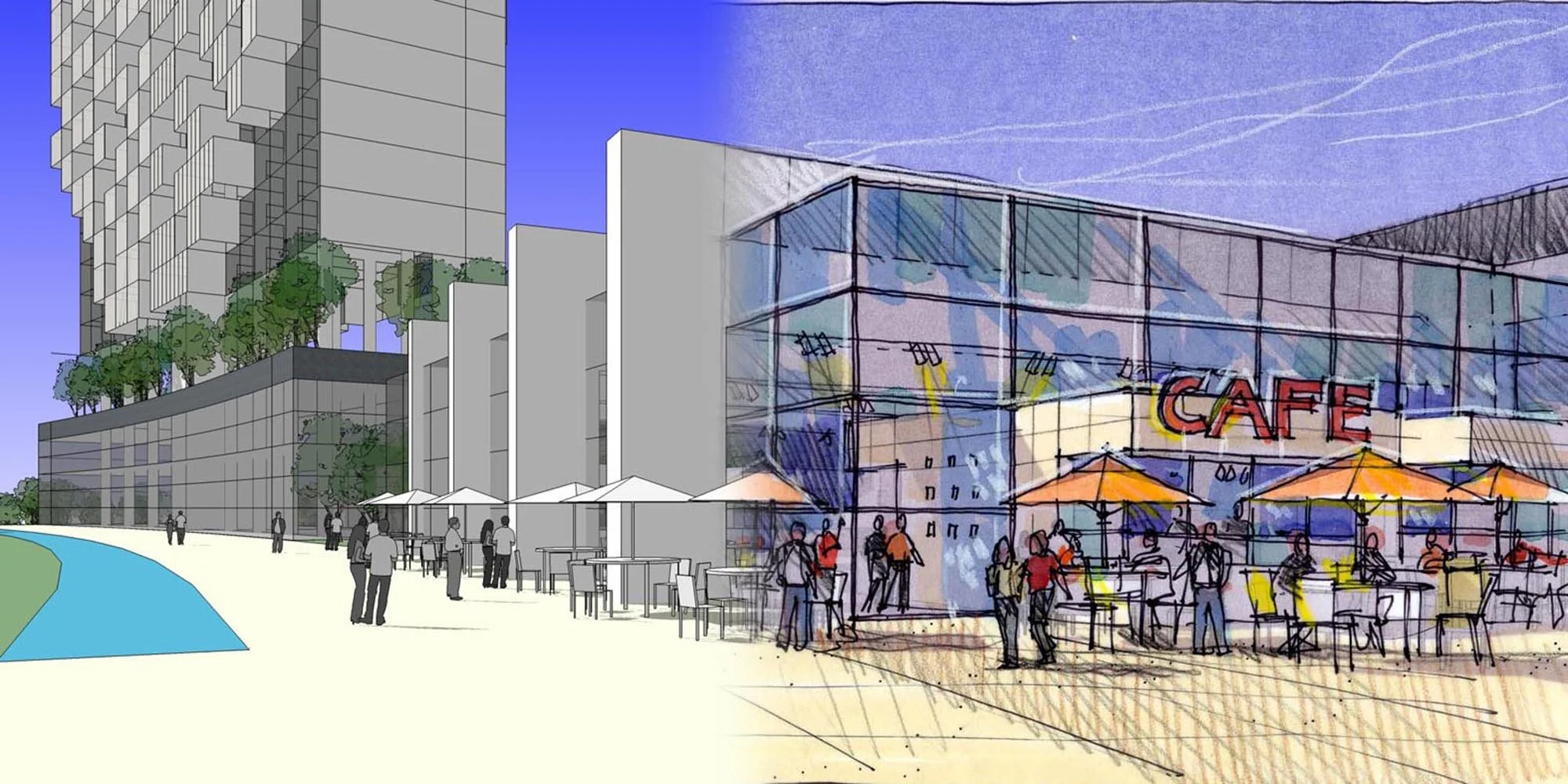
Here is an effective method of visualizing placemaking conceptual design that combines quick hand drawing techniques with SketchUp modeling. This project was a design competition for a new convention center in Tongling, China. Our team built a SketchUp massing model and I selected a number of views of the project from eye-level, aerial level, interior and exterior locations. The model views alone were much too computer-like and lacked character and personality so I printed the views on letter size paper, drew over them with pens and markers on trace, then scanned the two images together. I call this “composite scanning” and it is a great hybrid visualization method!
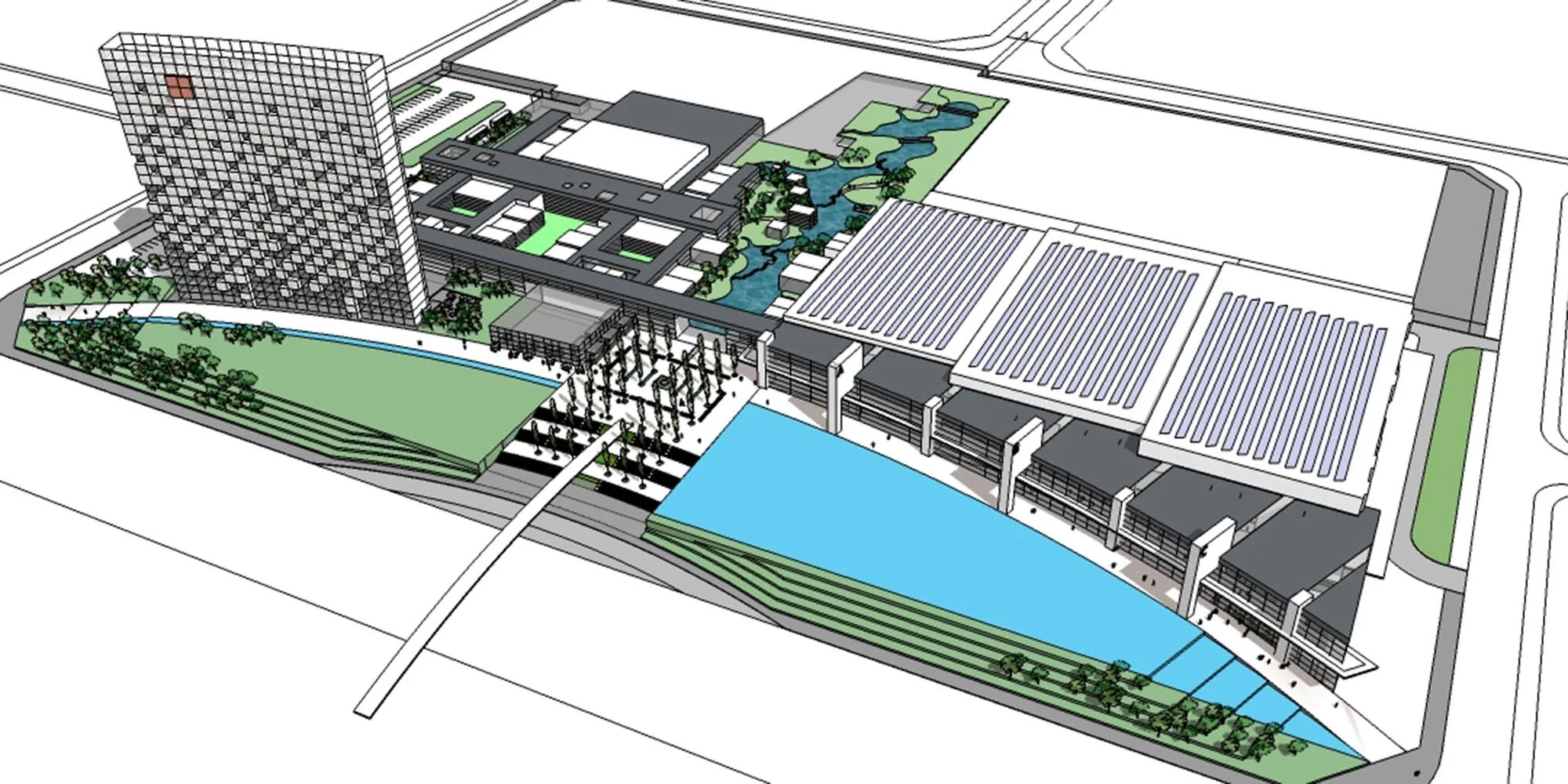
Aerial Model View - This SketchUp scene overlooking the pedestrian promenade captures the overall relationship between the convention halls, the hotel and a large open space landscape feature. The model is a simple “block model” with very little detail.
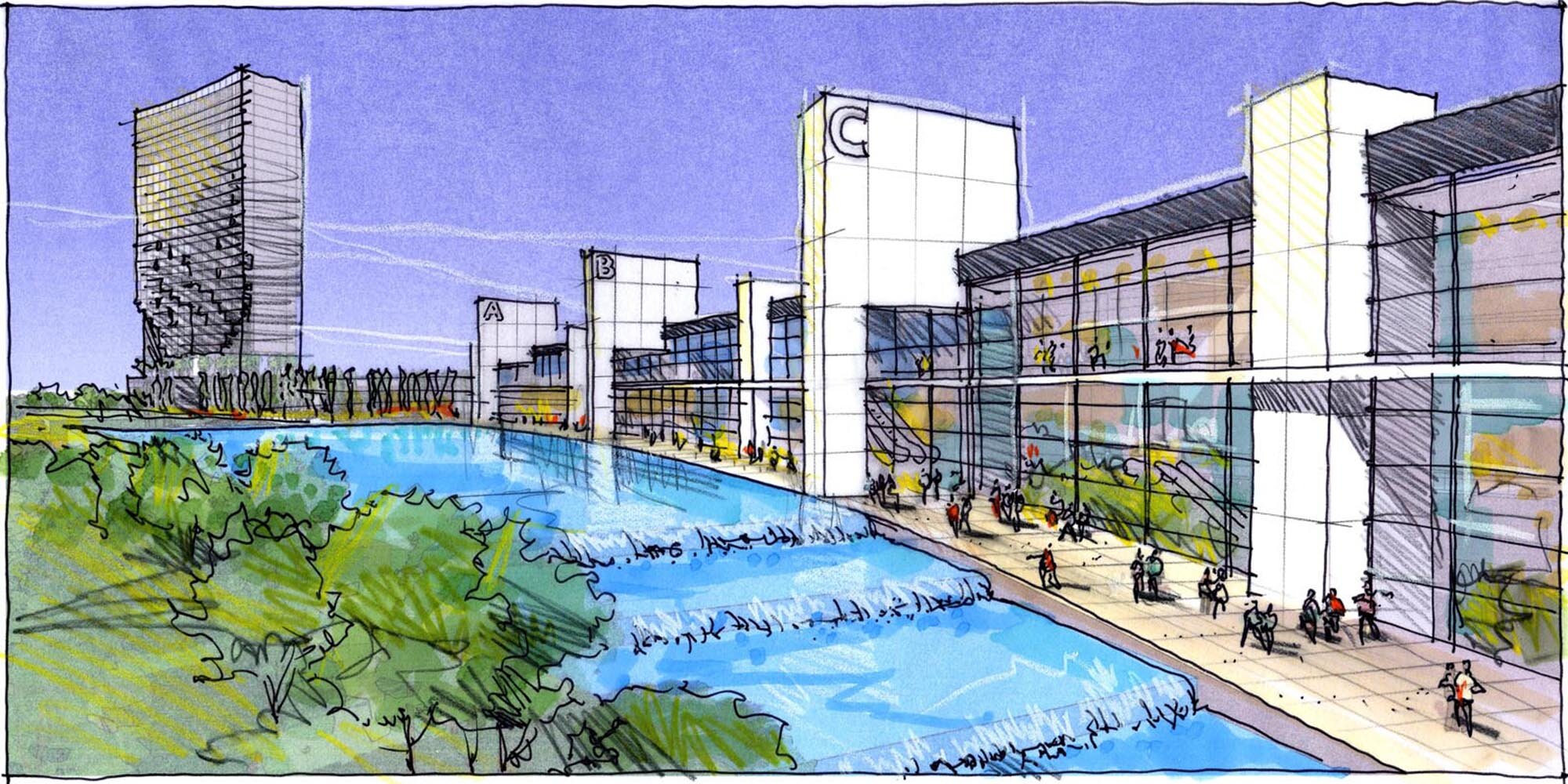
Aerial Composite Drawing - My drawing is on tracing paper using a water based ink pen. I colored the buildings and landscaping with markers but left the sky untouched because the dark sky from the SketchUp model was showing through the trace. I added white colored pencil to add reflections and outline the buildings. Yellow pencil added the illusion of lighting.
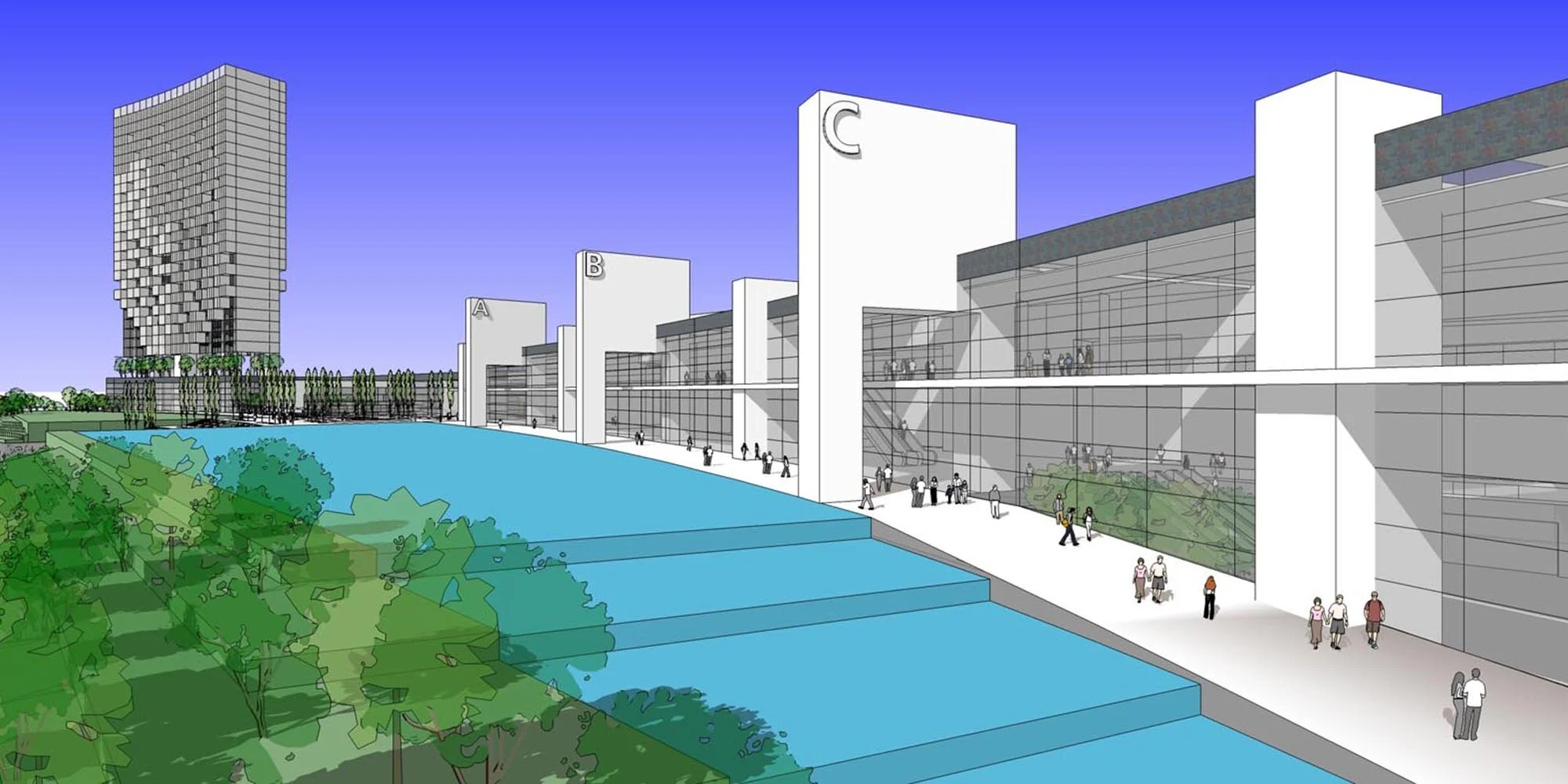
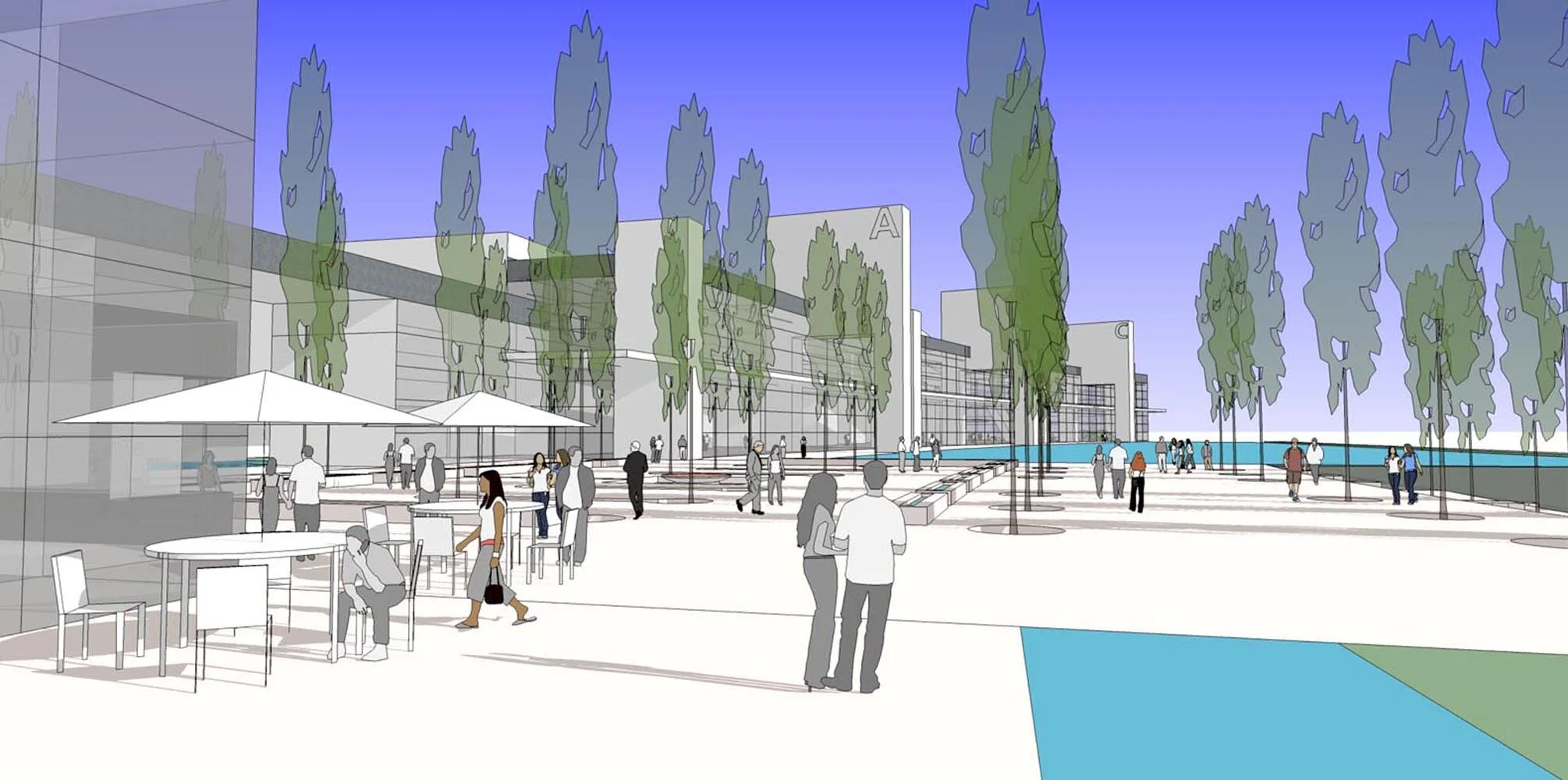
Plaza SketchUp Model - I selected an eye-level view of the plaza and populated it with a few tables, umbrellas and people. All entourage components had very little detail and were carefully positioned in the composition.
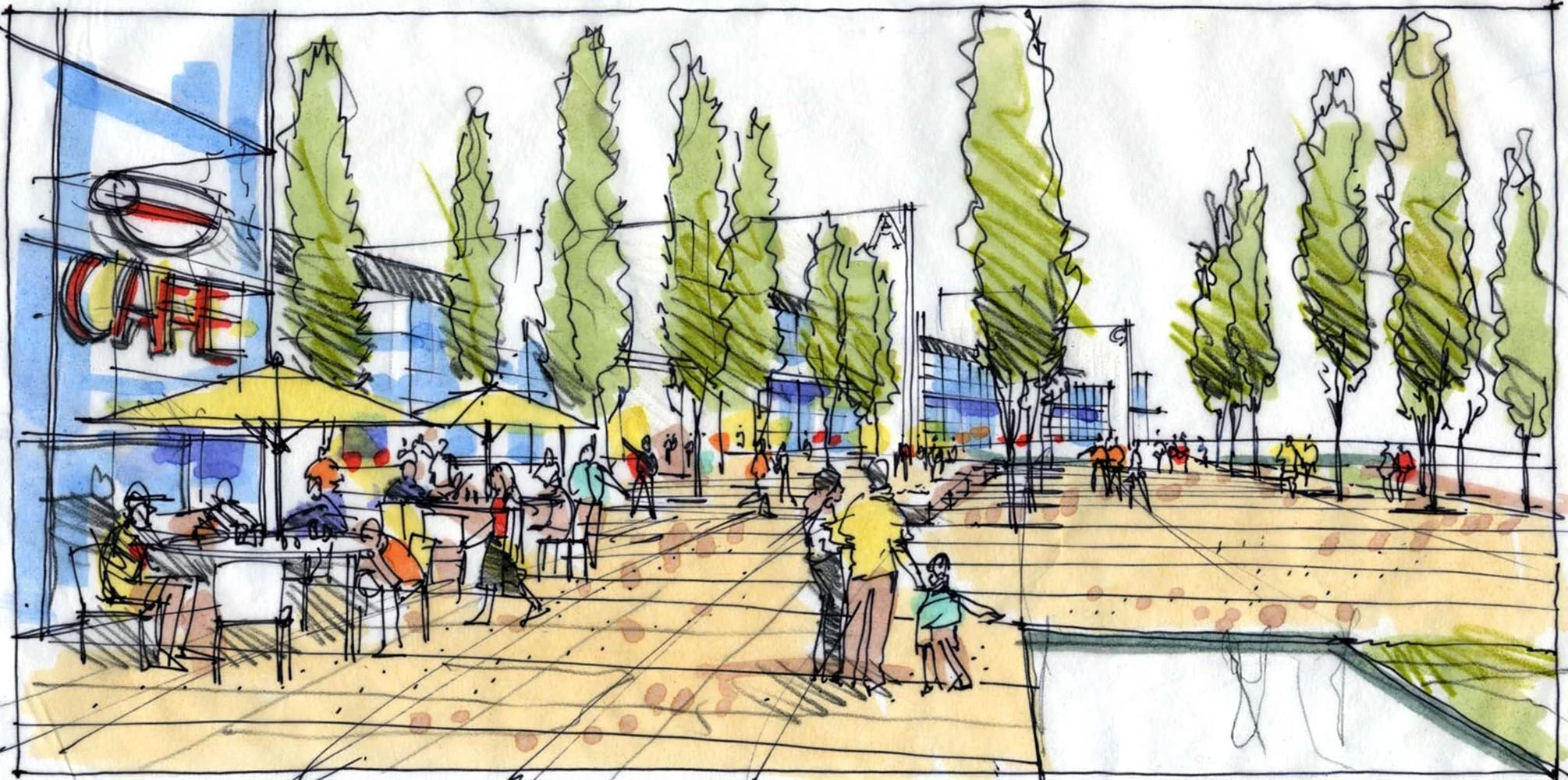
Plaza Overlay Drawing - This is a scan of my actual drawing without any background. Notice the white sky, colorless water and lack of contrast between the sky and building.
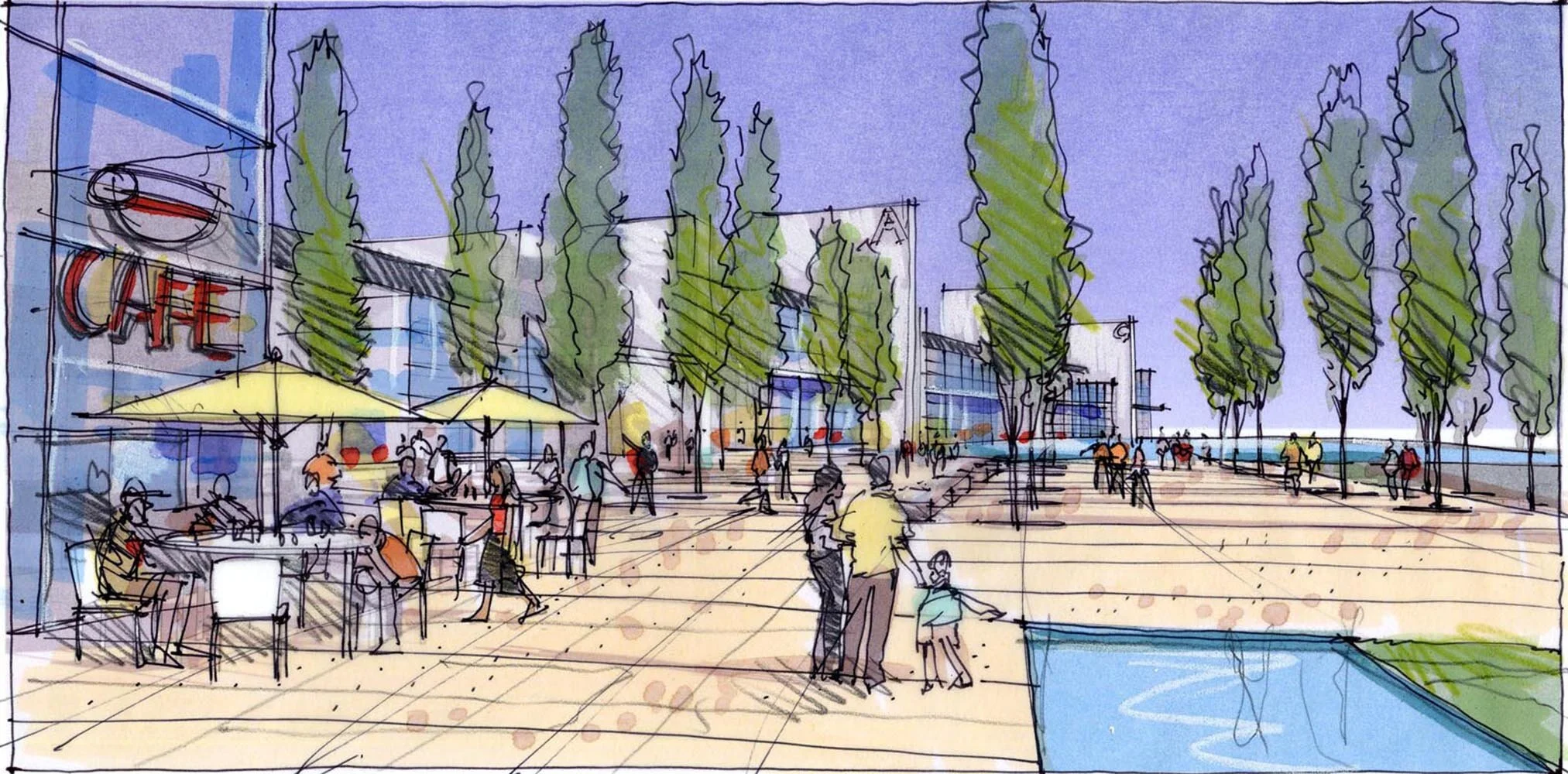
Plaza Composite Scan -I taped the tracing paper drawing directly over the SketchUp model print and scanned the two together. The blue sky and water now create a nice contrast against the white building and the plaza pavement. This method of combining images is very effective for representing skies and solid background colors.
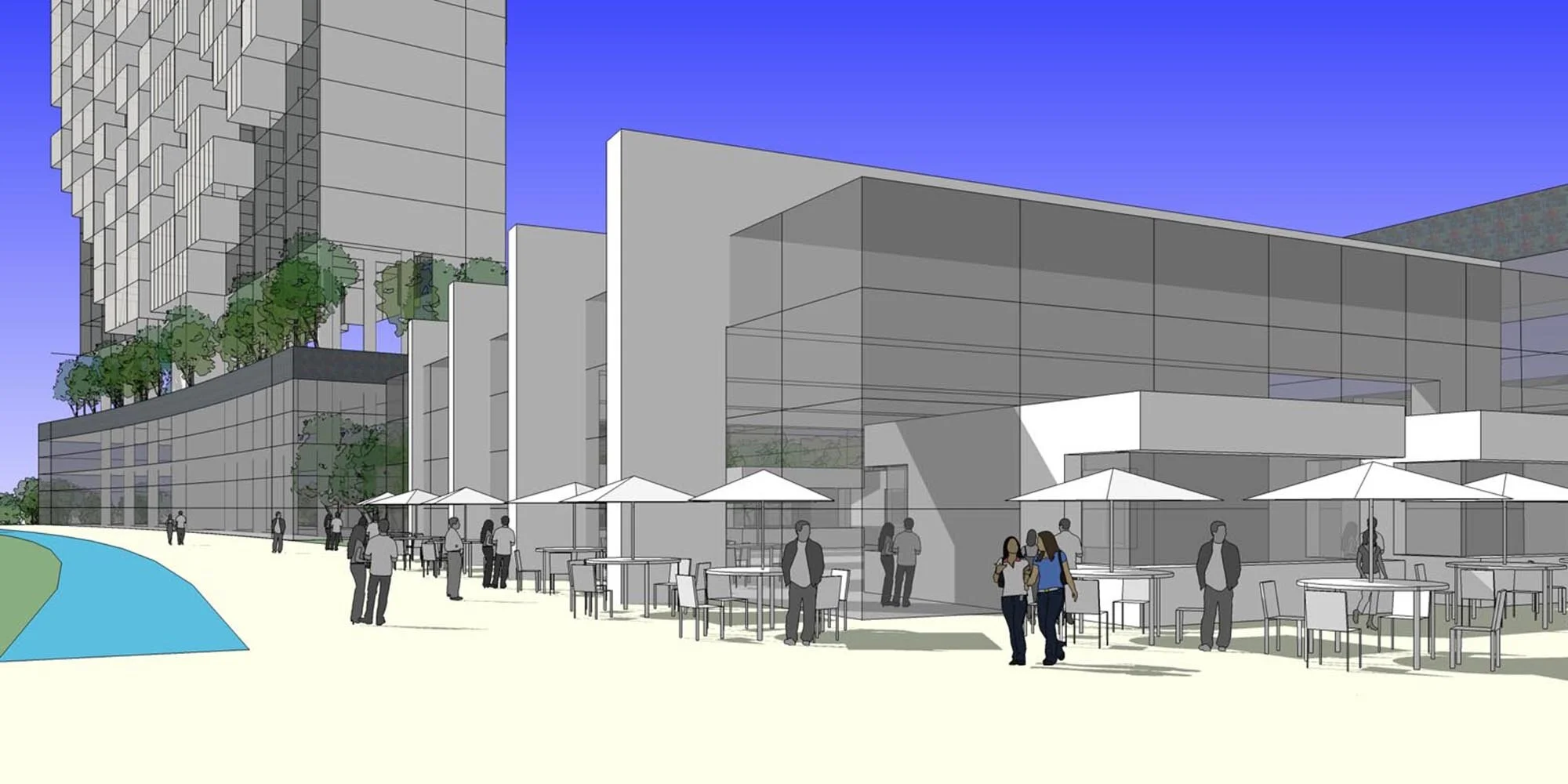
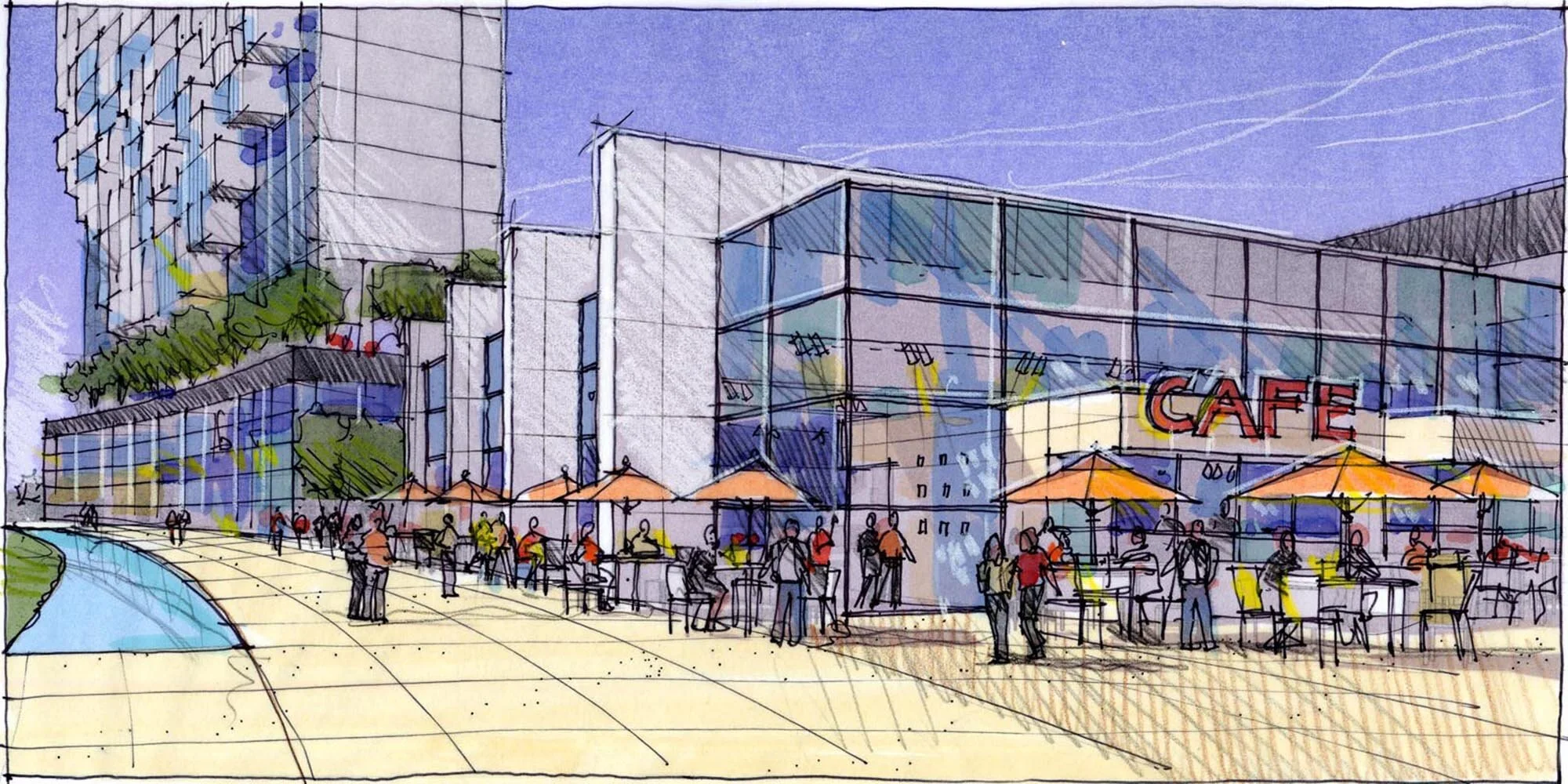
Terrace Cafe Model and Drawing - Notice how little detail there is in this block model. Glass mullions are single lines and the buildings have no materials assigned to them. Furniture has minimal model detail. The final composite artwork has pen and ink linework, white pencil highlights, reflections, graphic signage, color marker and pencil hatching added to the scene, telling a story about architecture and surrounding spaces.
Hybrid Visualization for a New Parking Garage
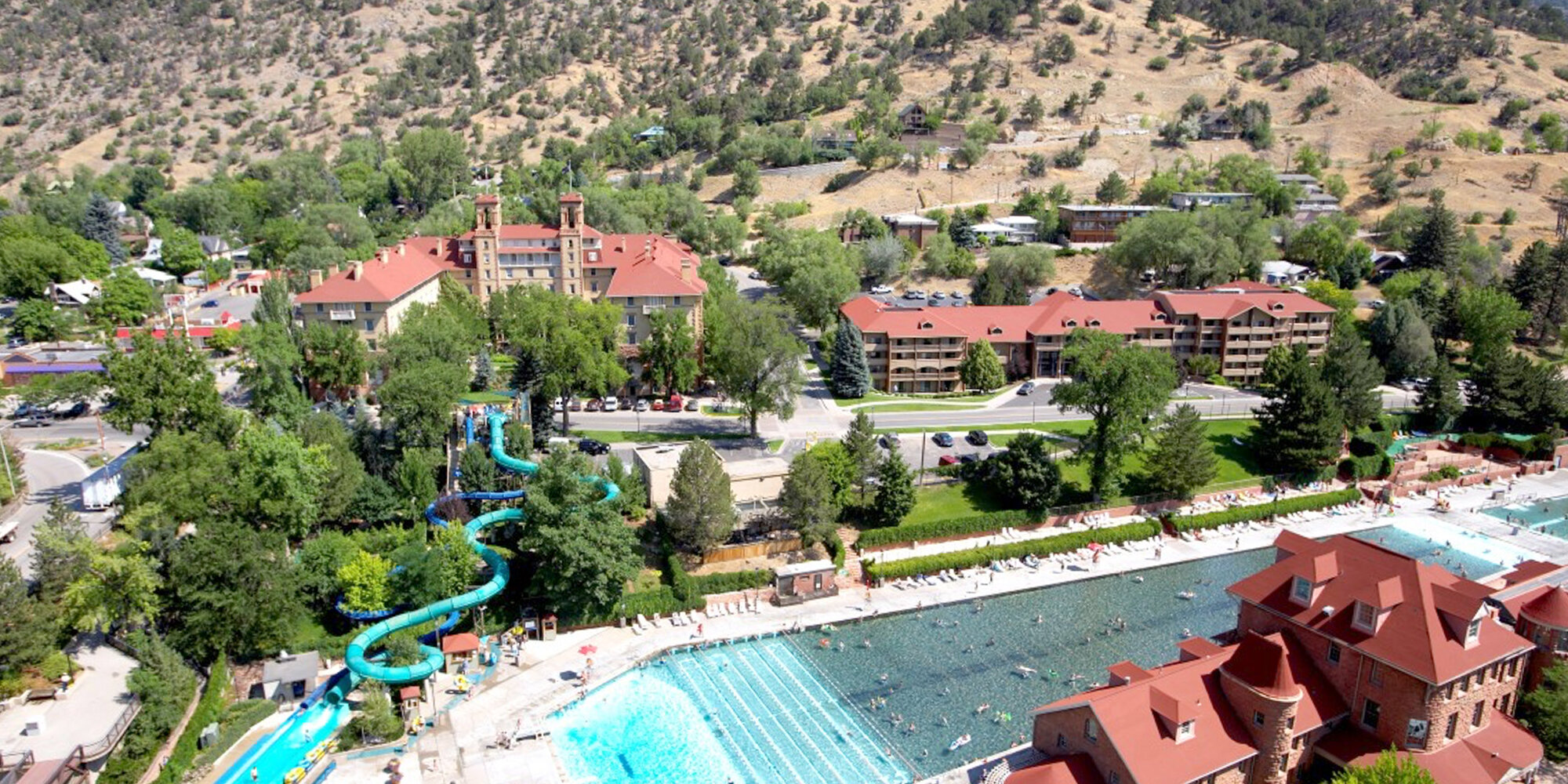
Owners of the historic Hotel Colorado in Glenwood Springs, Colorado asked me for help developing several concept design options and presentation renderings for a proposed multi-level parking structure adjacent to the 1893 hotel overlooking the famous Glenwood Hot Springs. My task was to present 3 different options to city council in order to generate enthusiasm for this public/private collaboration that would solve a much needed parking shortage in downtown Glenwood Springs.
Step 1 - Construct the 3D SketchUp Model. I obtained a conceptual parking layout and site topographic information from a local parking engineer and quickly modeled the parking geometry nested into the hillside using SketchUp Version 18.0. I built corner stair elements and added more detail to them with window mullions, stairs and roof shapes related to elements existing in a nearby pedestrian bridge. This massing model established the basic framework for exploring different facade options.
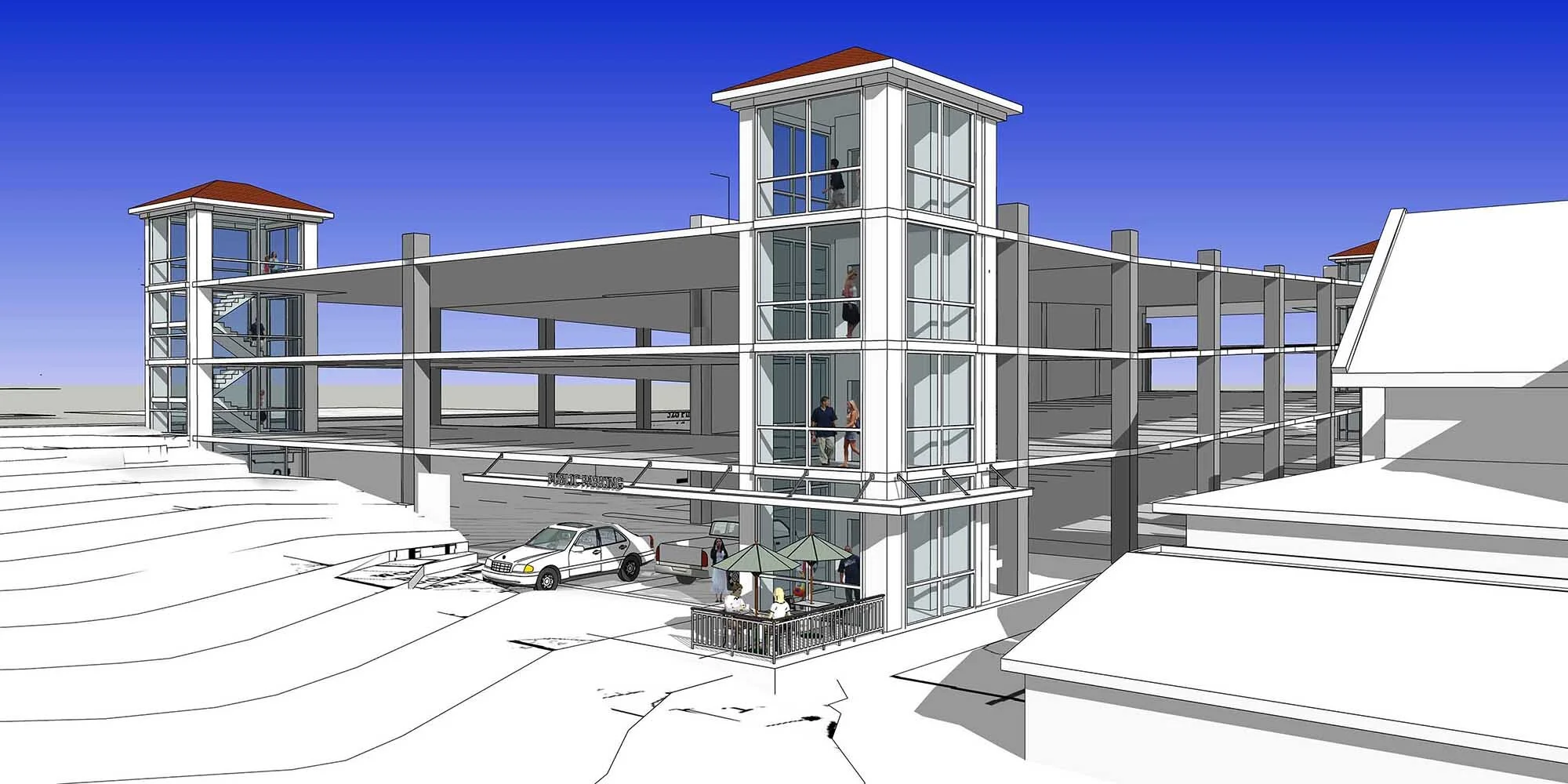
Step 2 - Develop Facade Options. Tasked with presenting 3 different design concepts, I began building different exterior “skin” options for the parking structure. As you can see from the model, I determined an optimum perspective view and saved the scene for my final rendering, therefore only modeling two of the four sides of the building - ONLY those parts of the model pieces visible in the scene!
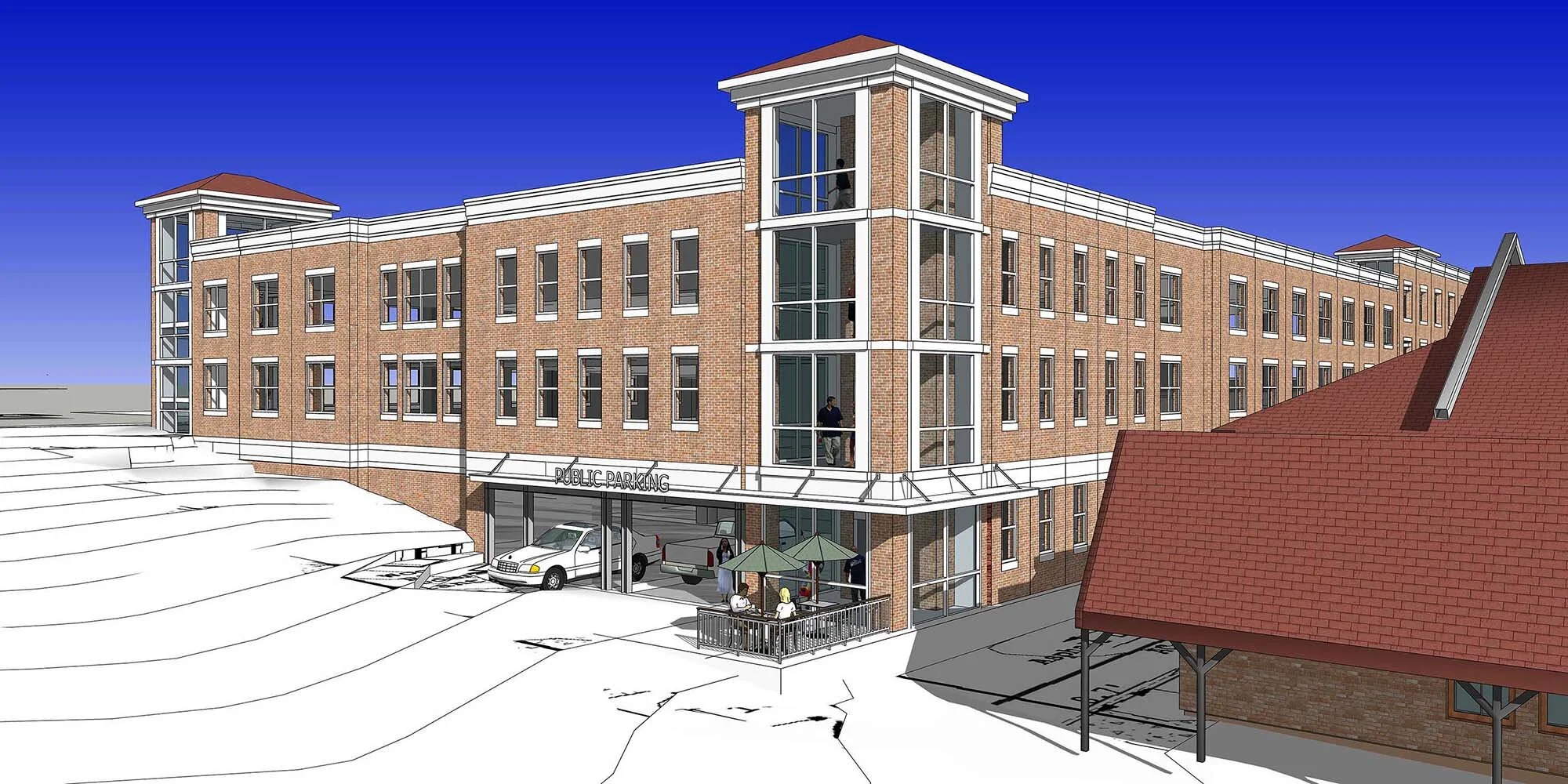
Step 3 - Add Entourage and Model Context. This final modeling step involved populating my model with people, cars, landscaping, signage, lighting and adjust the architectural materials and colors to match those of the historic Hotel Colorado. I was fortunate enough to receive an accurate 3D SketchUp model of the hotel from another consultant who had flown a drone around the building and created a very accurate 3D scan of the structure. My completed model integrated new architecture of the parking garage with the historic architecture of the 127 year old hotel.
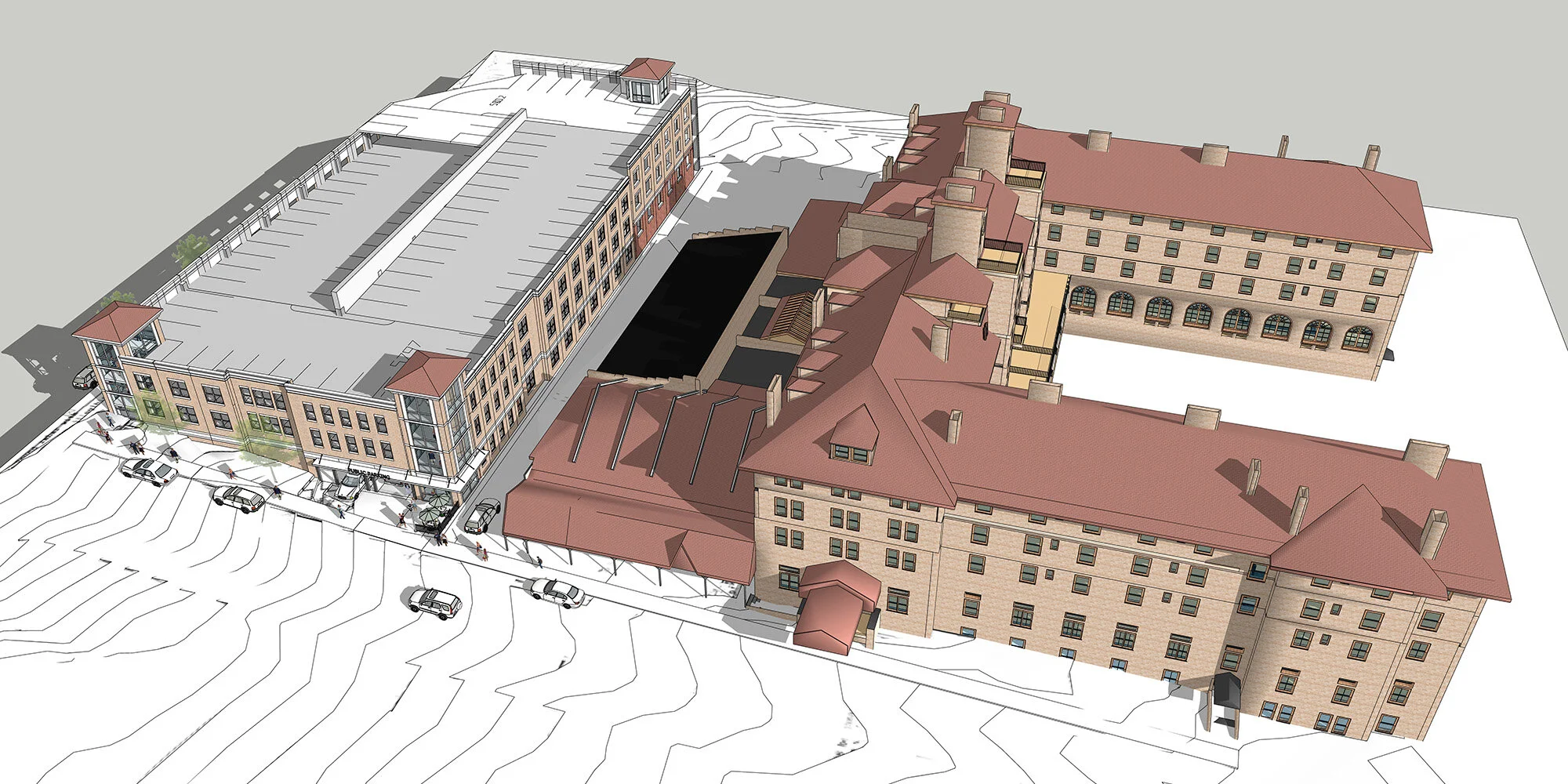
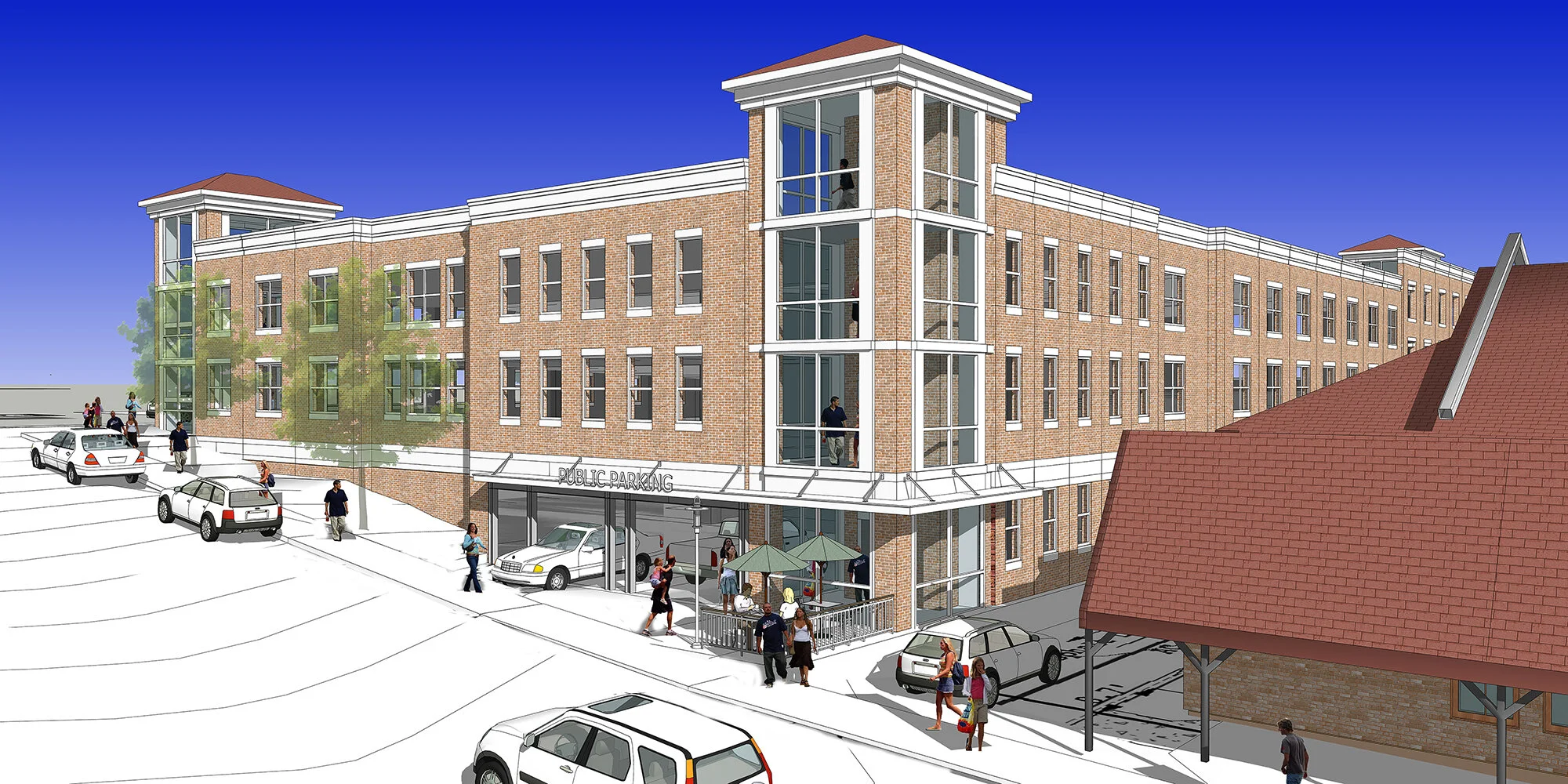
Step 4 - Export and Print the Model Scene. I made final adjustments to the model lighting and exported a high resolution jpg of the scene. I then printed the 9 1/2” x 16” image on oversized Epson heavy weight coated bond presentation paper using my Epson Workforce 1100 inkjet printer. Before I printed the jpg, I lightened the image by 50% using Adobe Photoshop in order for me to “add back” color using markers and colored pencils.
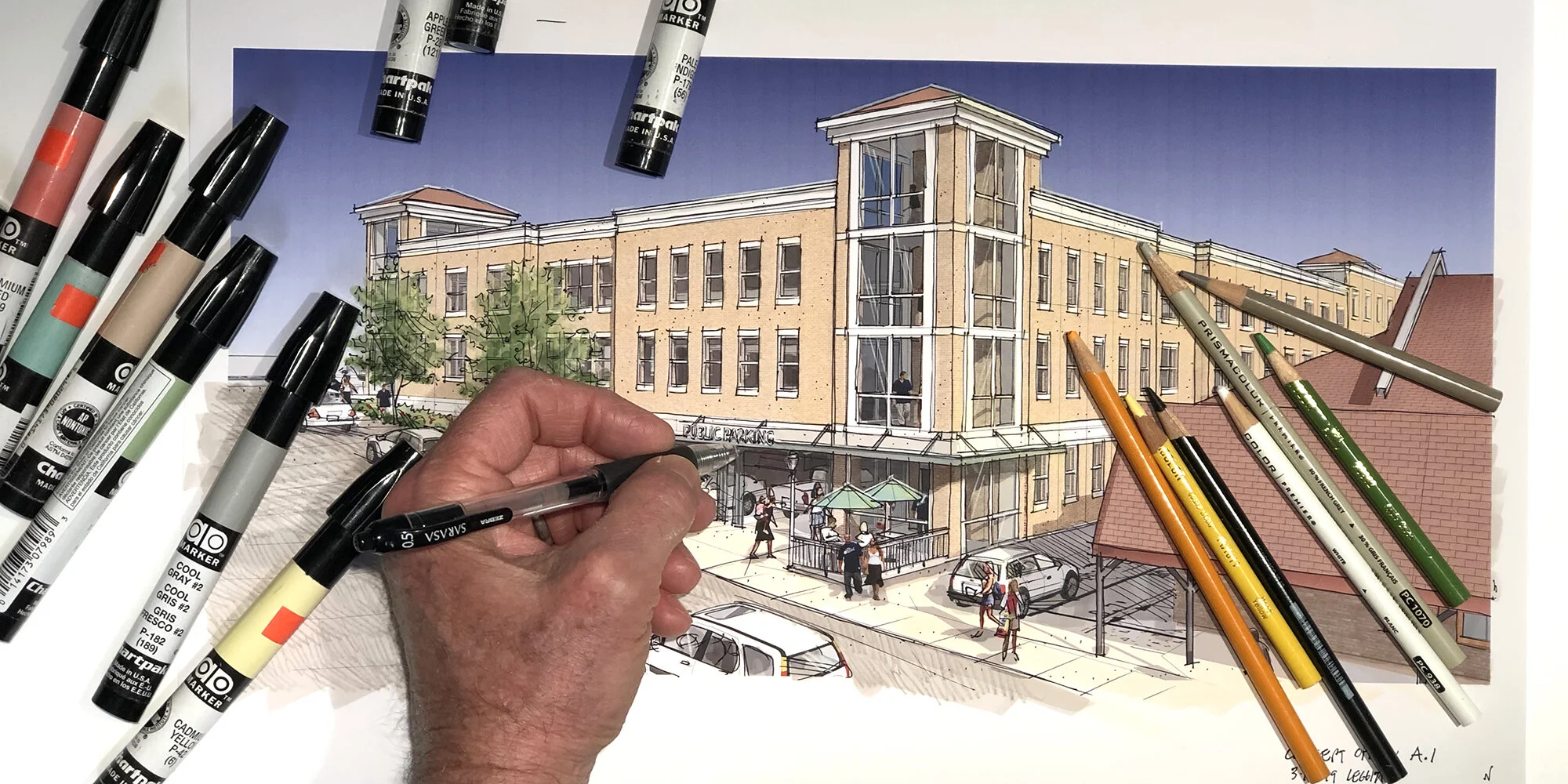
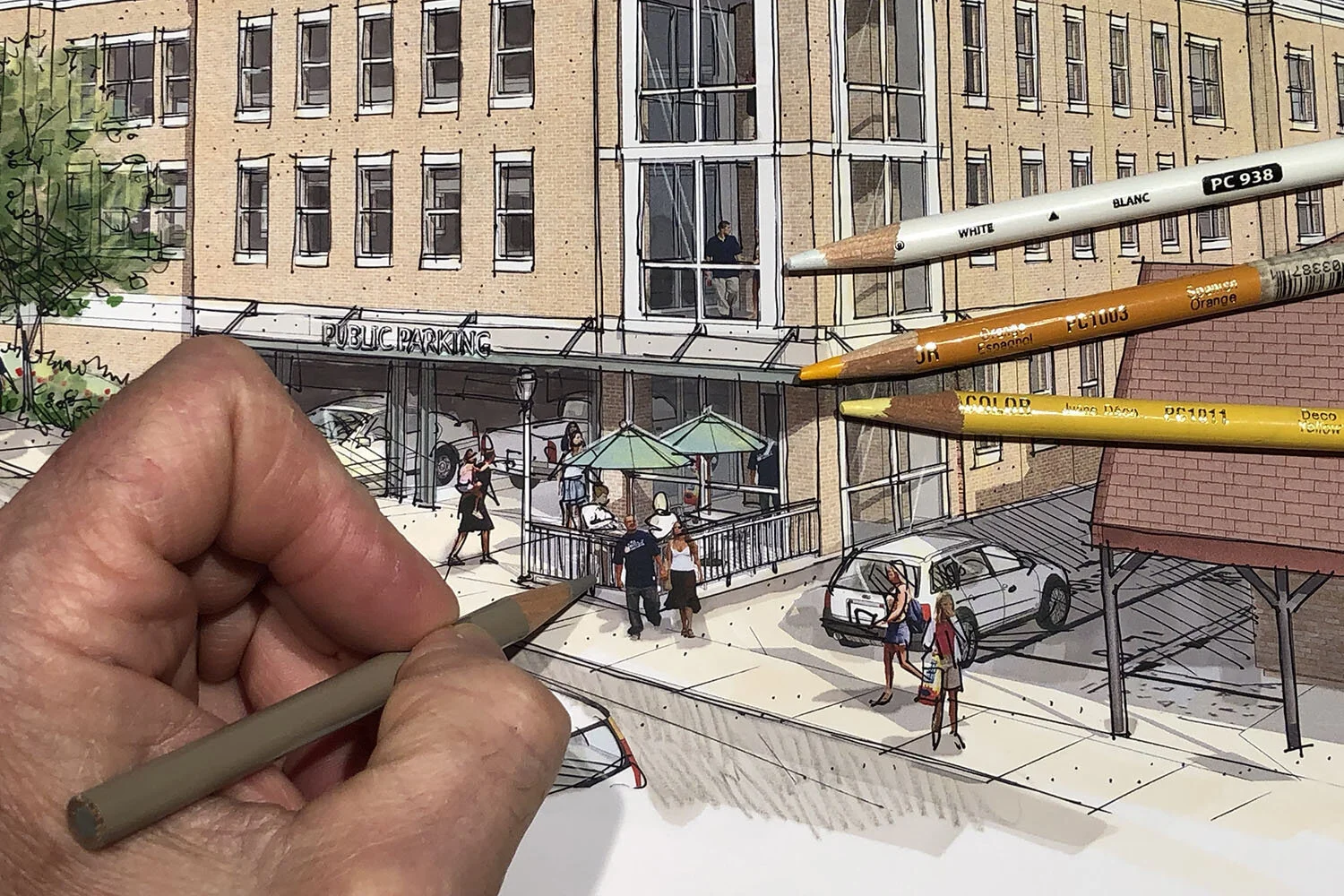
Step 5 - Illustrate the Scene by Hand. This step was where the fun began with the hybrid drawing project. Being “hybrid”, the process involved merging SketchUp modeling with hand drawing and coloring. I first used a water based fine point gel pen to draw directly onto the print - tracing edges, outlining people and completely transforming the appearance of the computer generated model into hand illustrated artwork. Once the linework was completed, I added light colored markers to the facade, street and entourage, leaving the sky untouched. I added texture to the street with a warm gray Prismacolor pencil and created highlights to the building with a white colored pencil. The final artwork was scanned at 300dpi and incorporated into a slide presentation for city council.
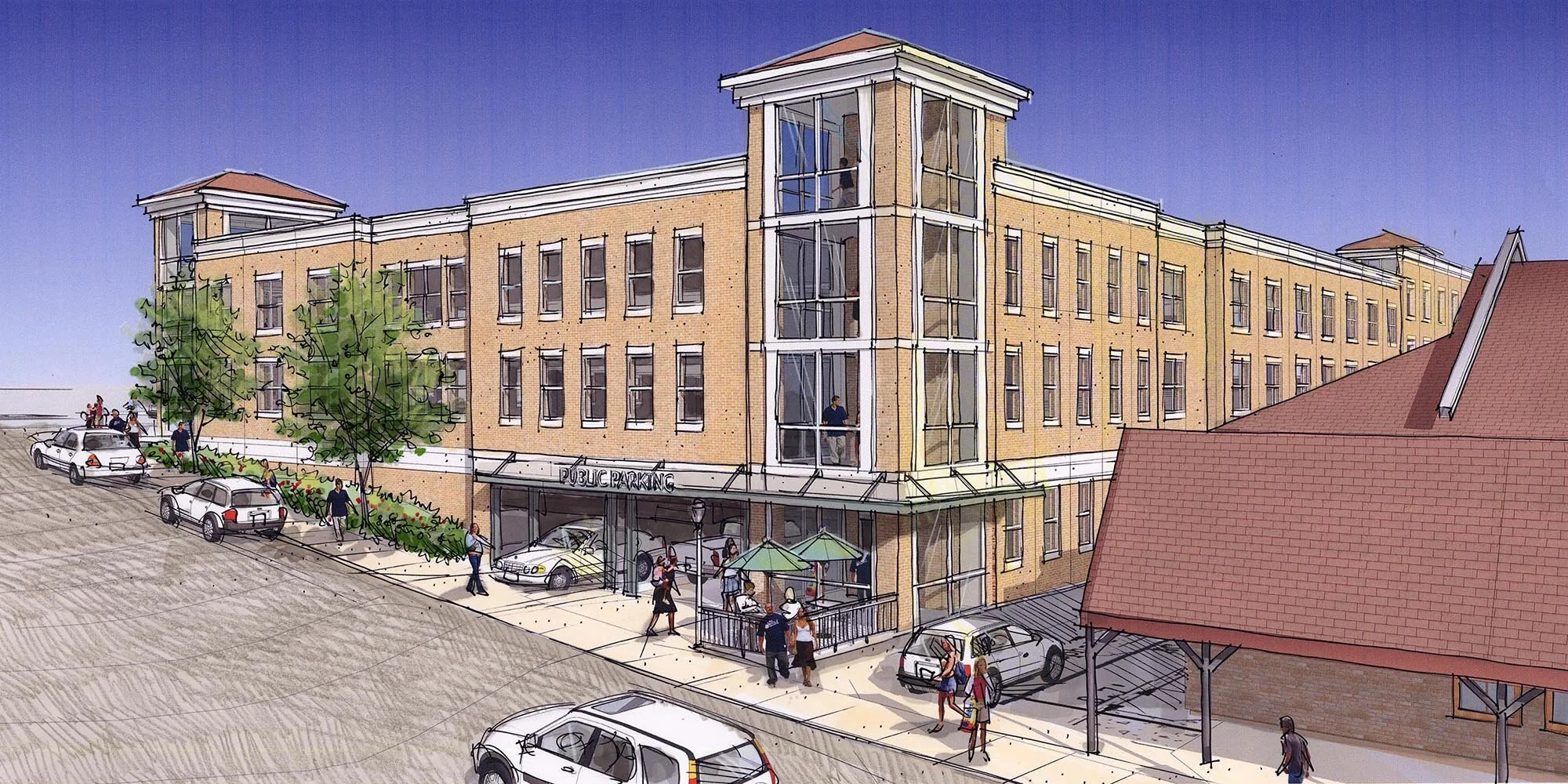
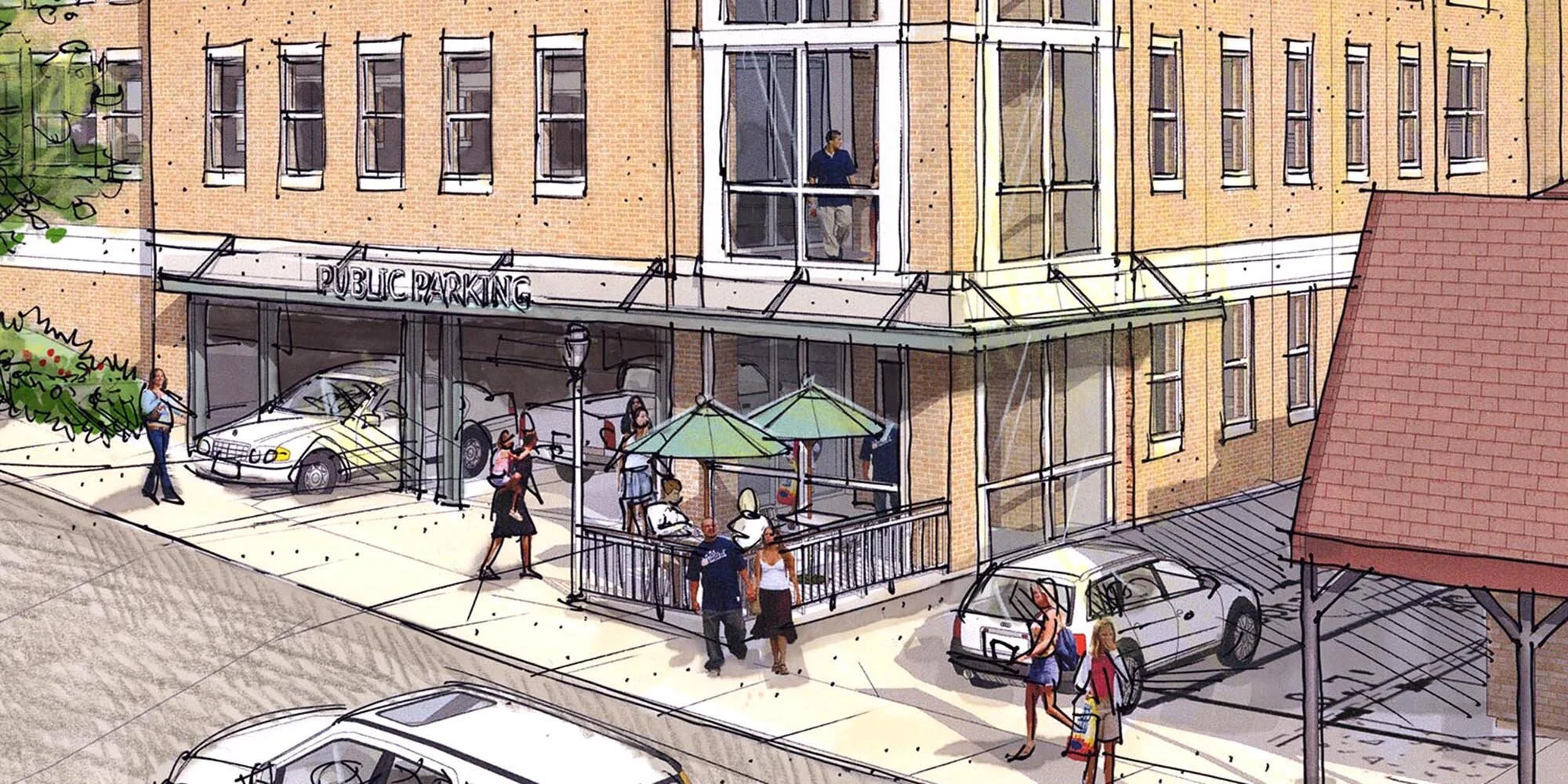
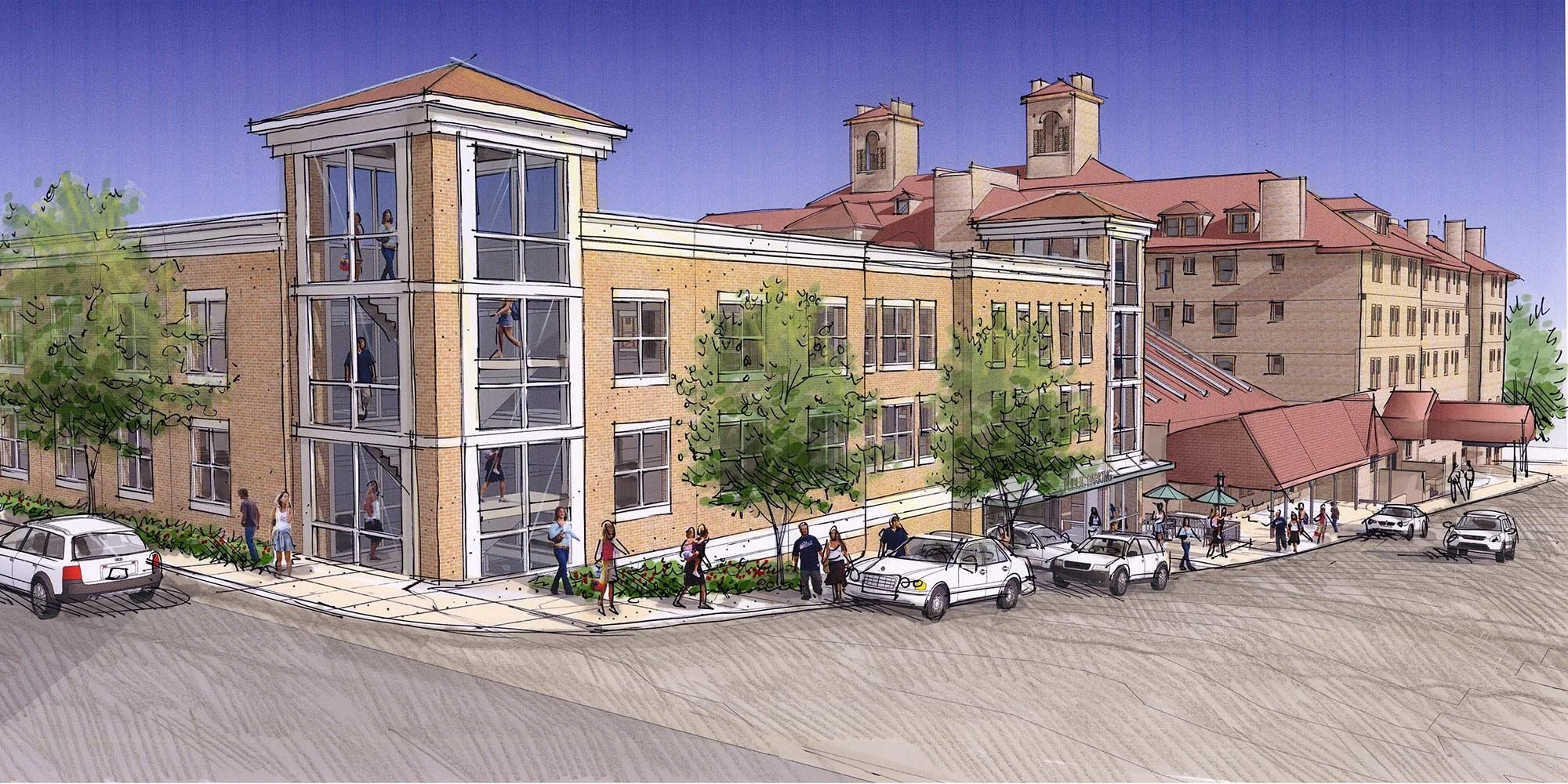
Additional View. I chose to illustrate a second view of the parking garage option by establishing a scene looking toward the historic hotel in order for viewers to clearly understand how the new building related in massing, color and materials to the existing hotel.
Drawing a Repurposed Gas Station from Sketchup
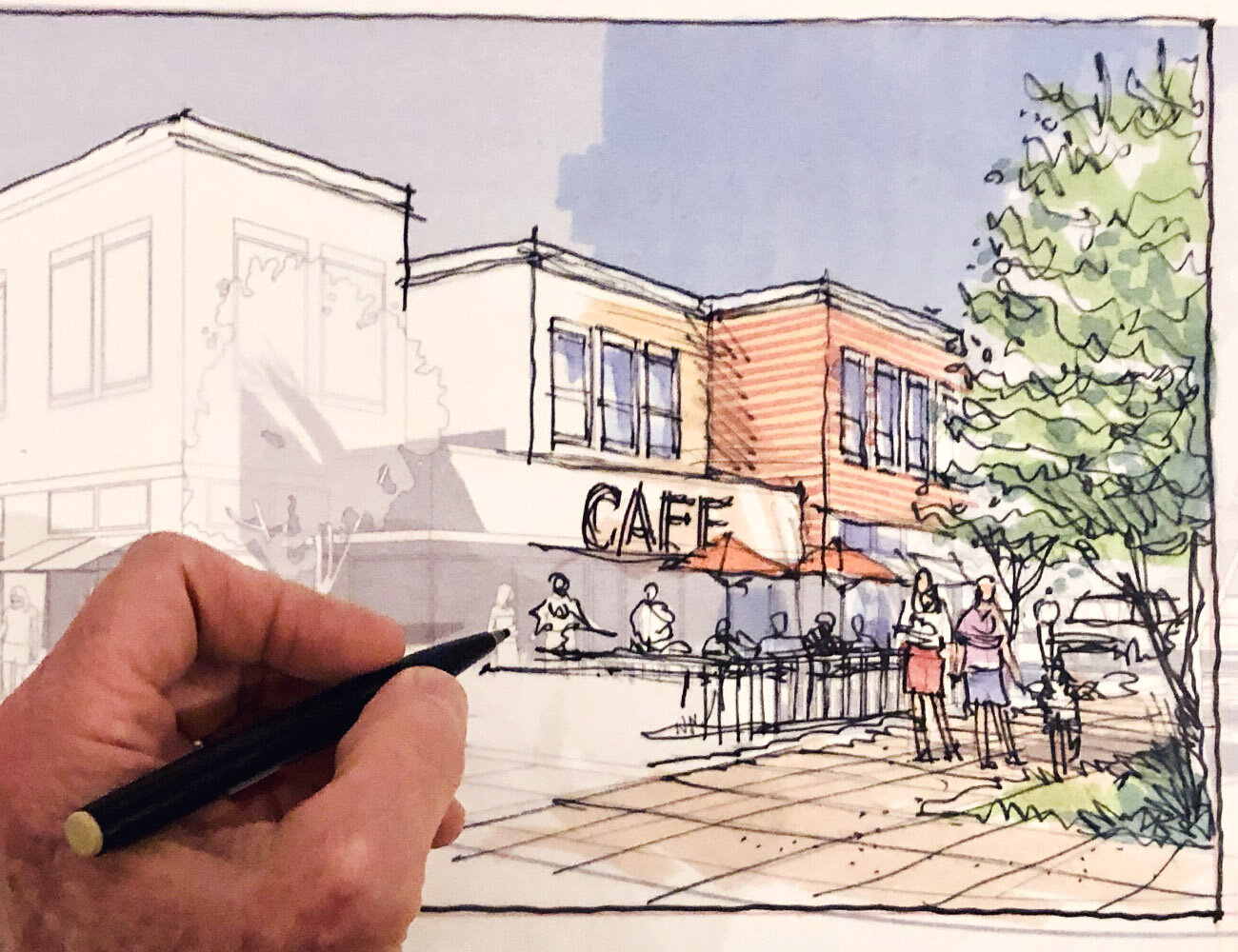
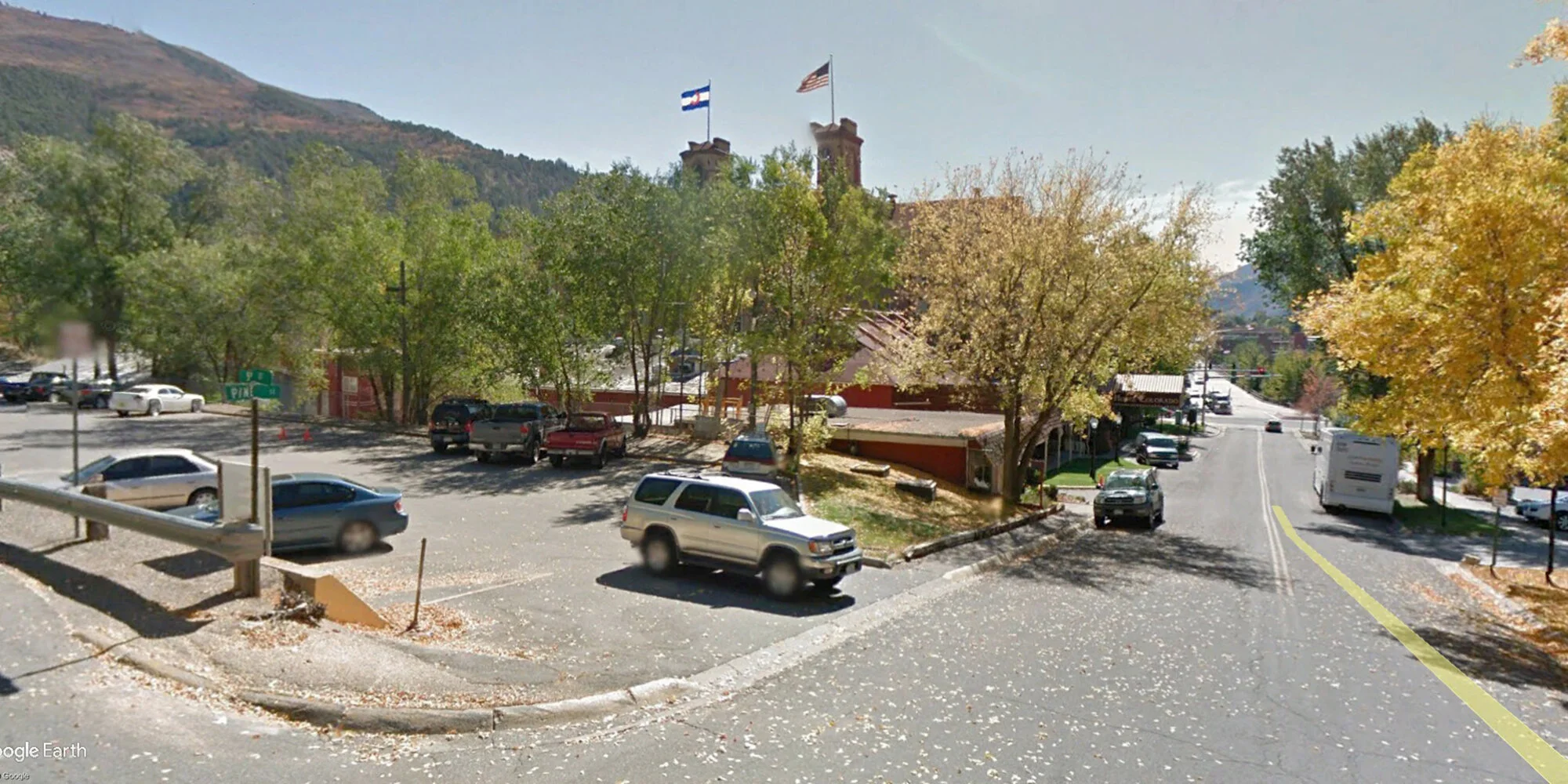
I gave a talk on visualization at a regional planning conference and just for fun developed a couple of drawing examples showing how to communicate design ideas using SketchUp modeling and hand drawing methods. I chose an abandoned gas station in Buena Vista, Colorado and proceeded to imagine what it might look like repurposed into a local cafe. I presented two drawing options: 1) overlay and trace method and 2) digital watercolor hybrid method. Both are explained below.
OPTION 1 - Overlay and Trace Method
Step 1. Build a SketchUp Model. I located the existing gas station on Google Earth and saved jpg’s of the site plan view and Google Street View. I then built a simple SketchUp “massing model” with minimal detail (plain windows and hardly any architectural information). I made sure to add people, cars, landscaping and furniture to the model in order to give the scene human scale and show activity.
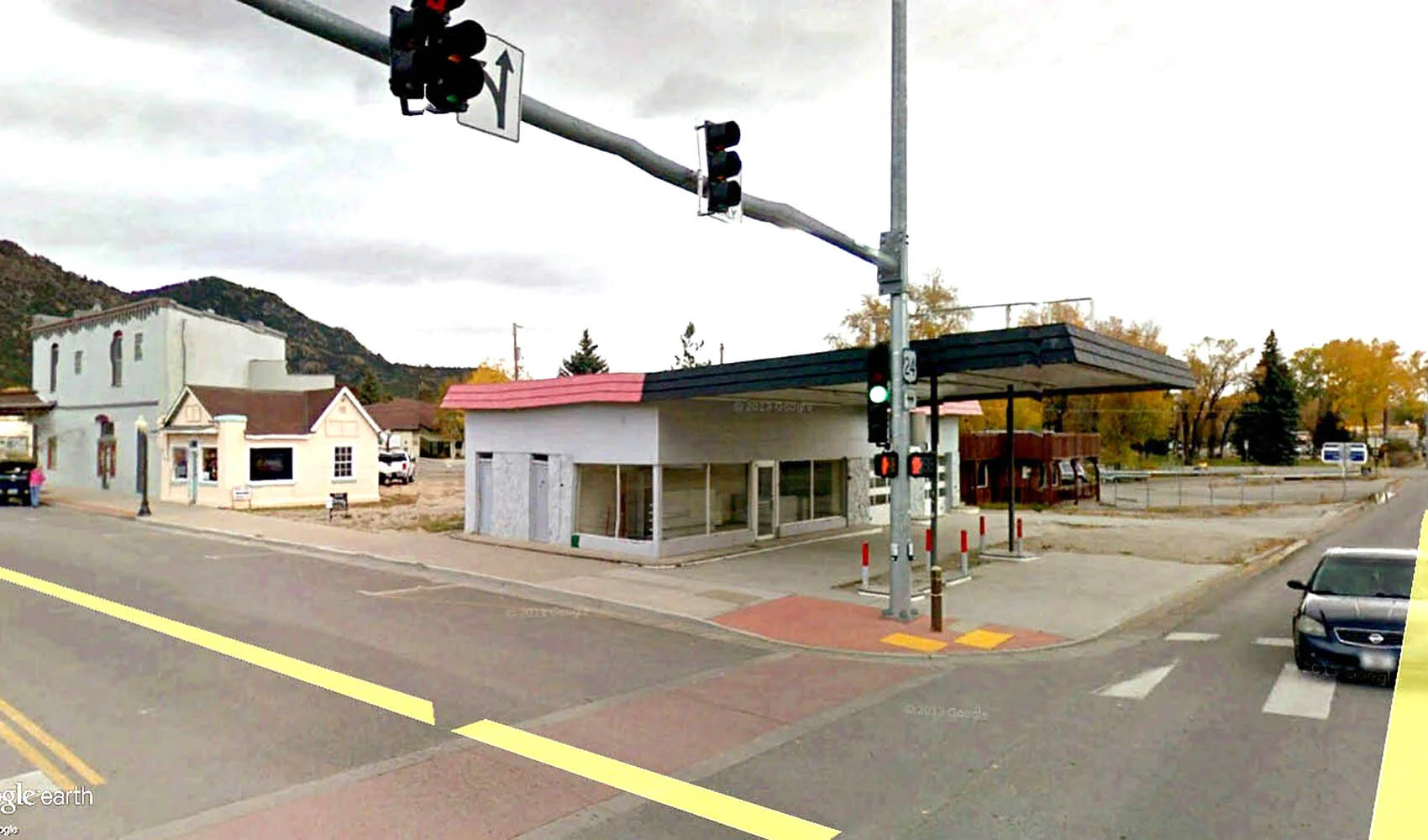
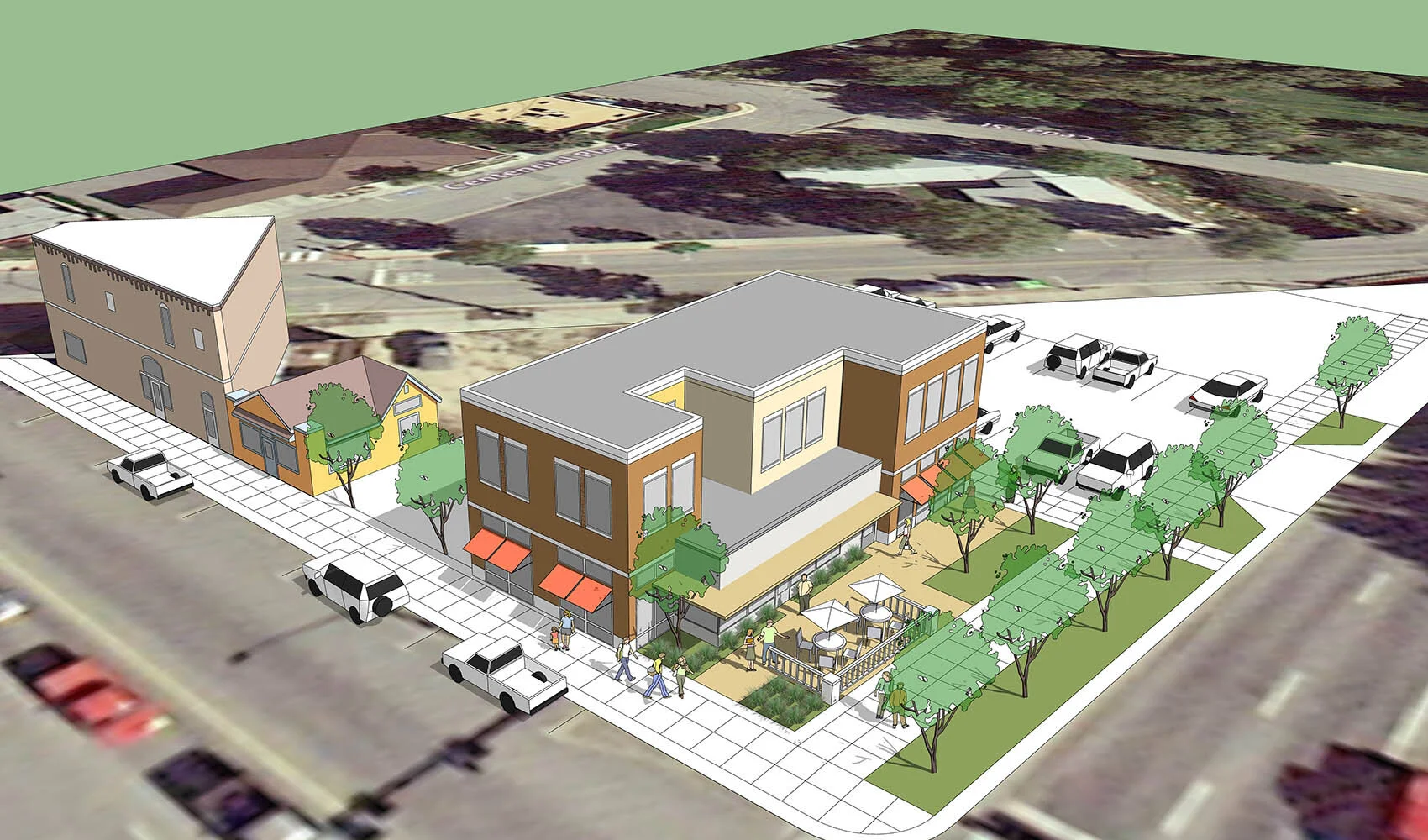
Step 2. Save an Eye Level Perspective View. I rotated the model to establish an ideal street level view, turned off all color in the scene style and saved a high resolution jpg of the composition revealing only model linework and shadows.
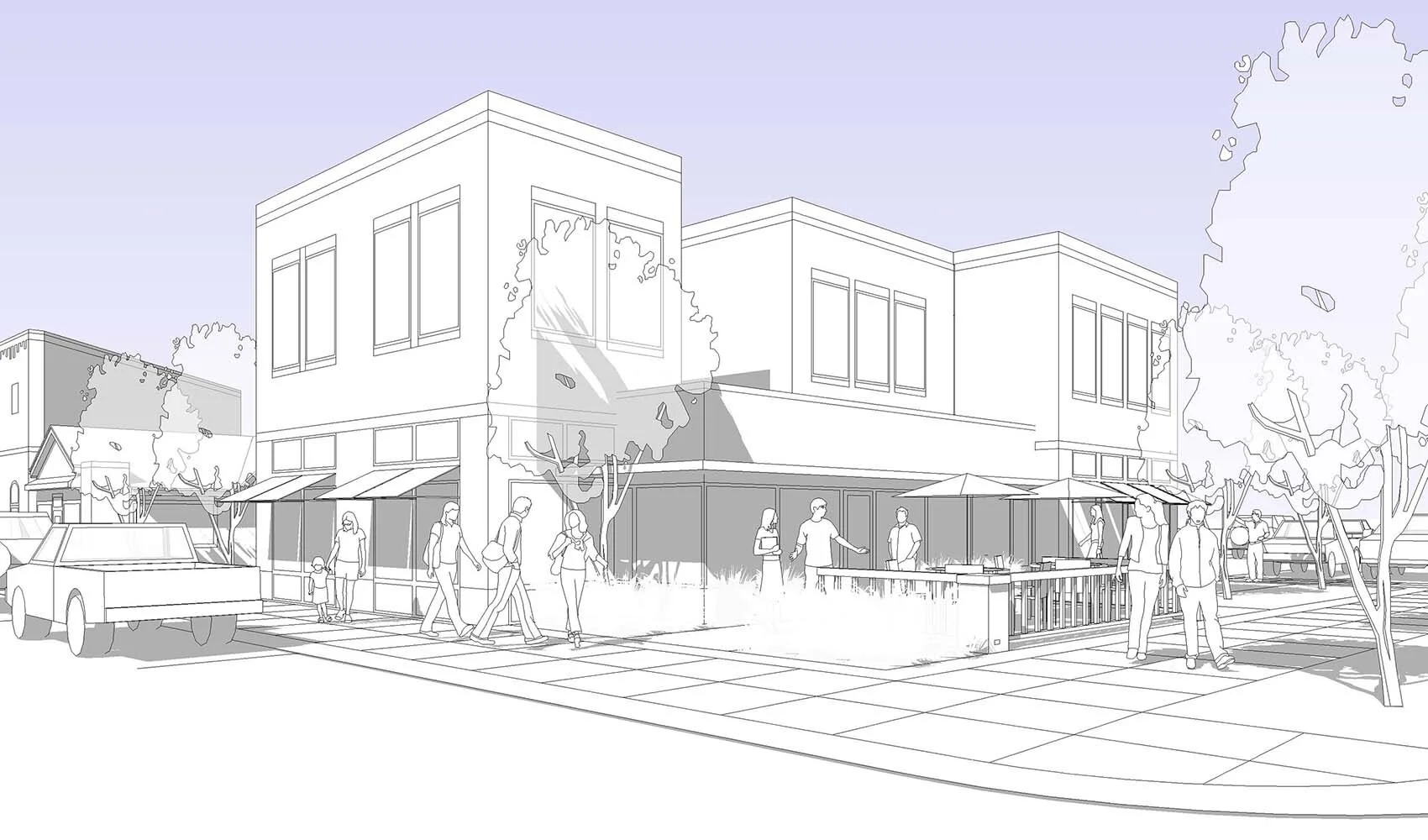
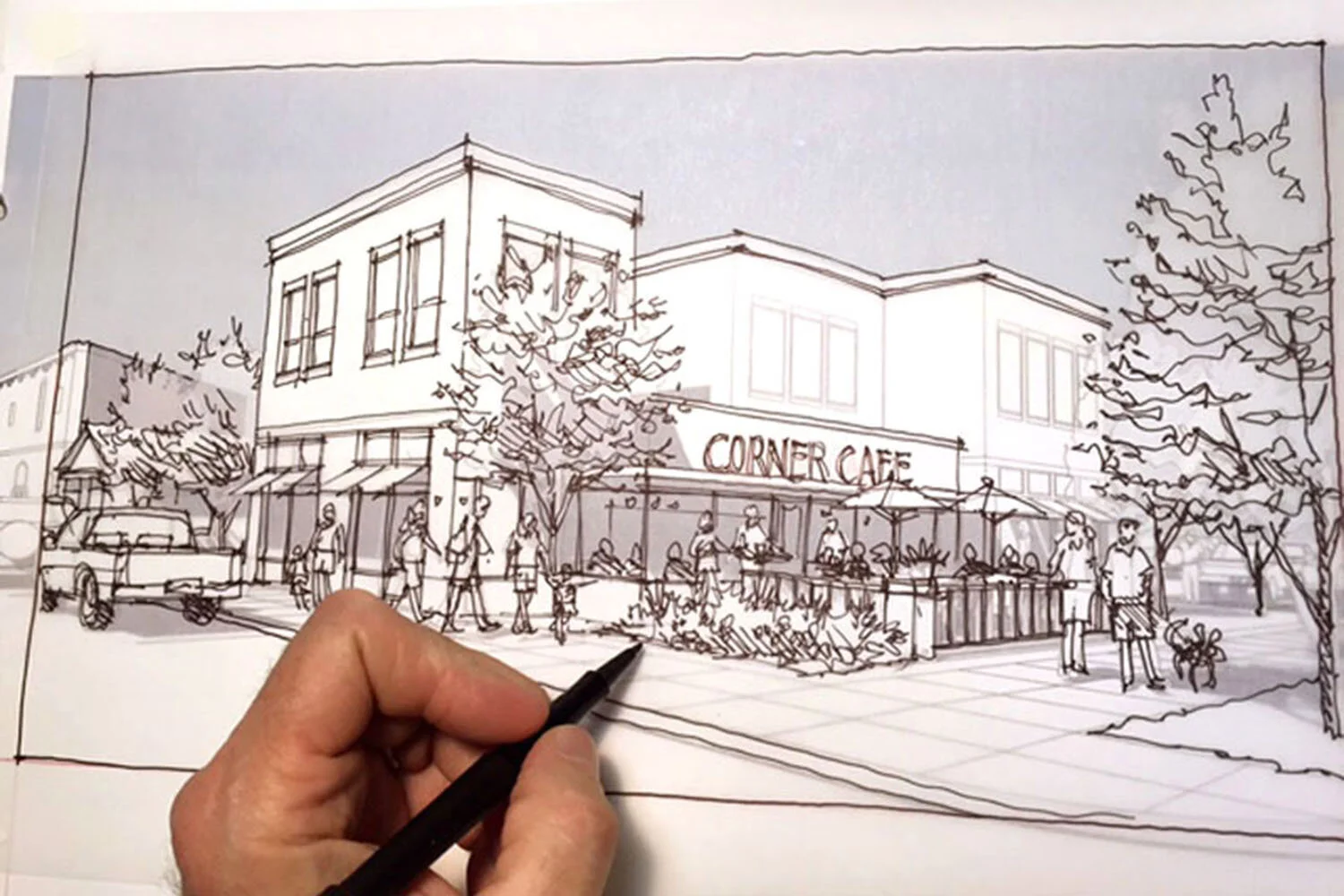
Step 3. Overlay and Trace Line Drawing. I printed the exported model view on 11”x17” paper, taped a sheet of lightweight tracing paper over the print and illustrated the scene using a water based Paper Mate Flair pen by simply tracing all of the basic model information and adding more drawing detail such as signage, tree leaves, flower beds and storefront elements.
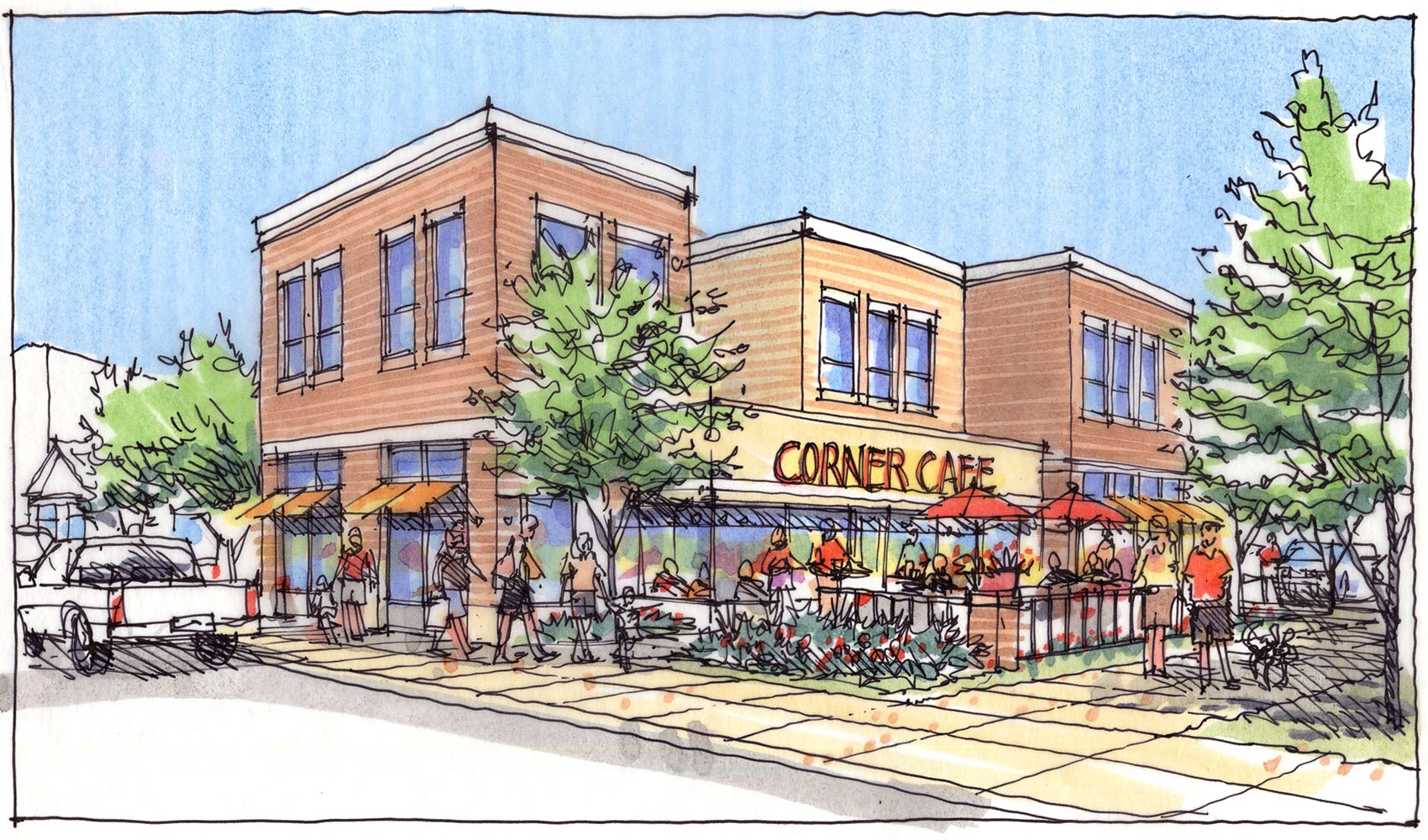
Step 4. Final Colored Artwork. Using no more than a dozen colors of Chartpak AD markers, I completed the drawing and scanned the artwork in color as a 300dpi jpg. Note the second layer of colored marker lines on the building walls to represent brick construction.
Option 2 - Digital Watercolor Hybrid Method
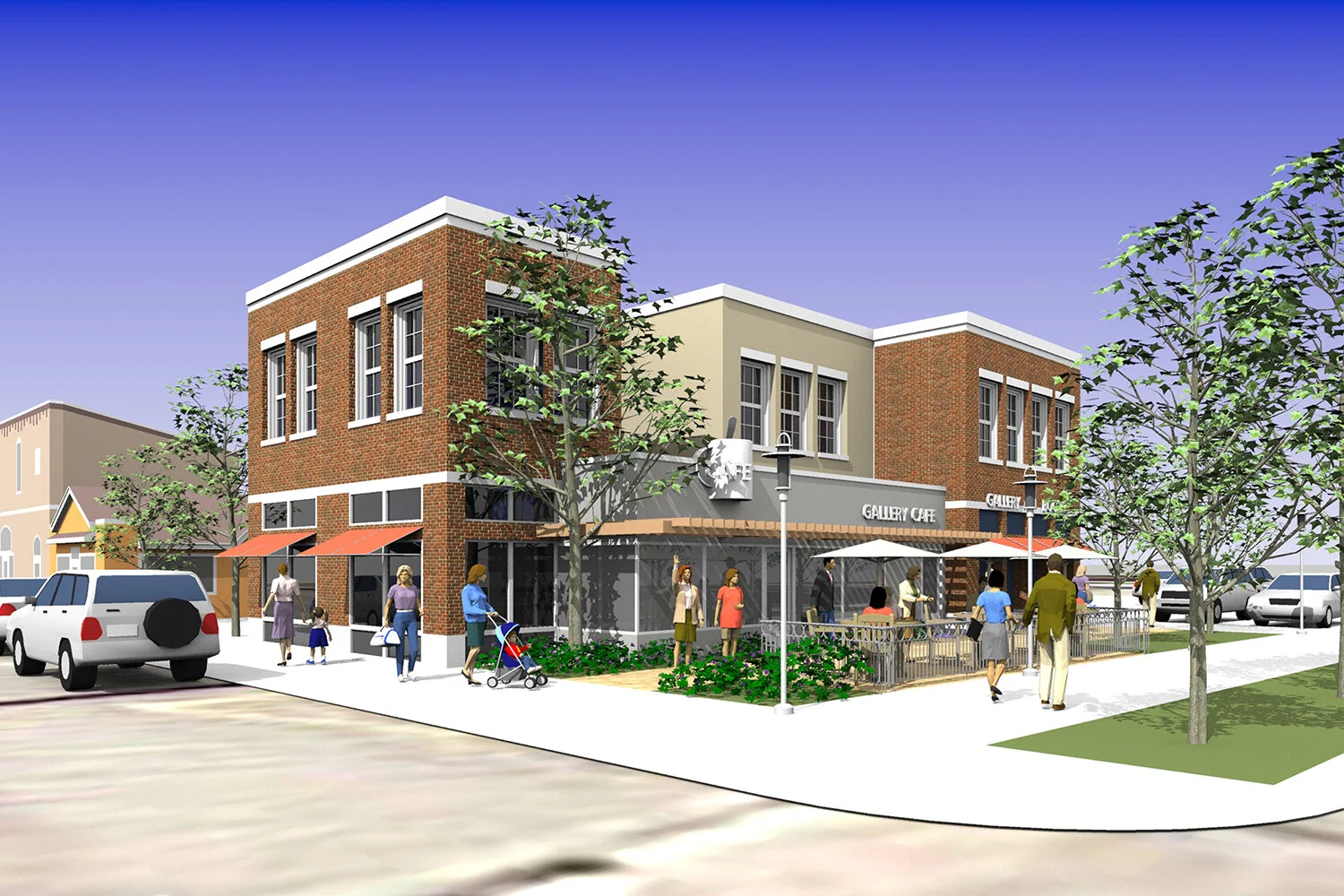
Step 1. Detailed SketchUp Model. This visualization technique was entirely different than the previous overlay and trace method and produced a more sophisticated rendering that had the appearance of being painted with watercolors. Unlike the previous massing model, this new model incorporated much greater detail in the architecture, signage, window mullions and landscaping. The cars were more refined model components and people were 3D components rather than the previous 2D people.
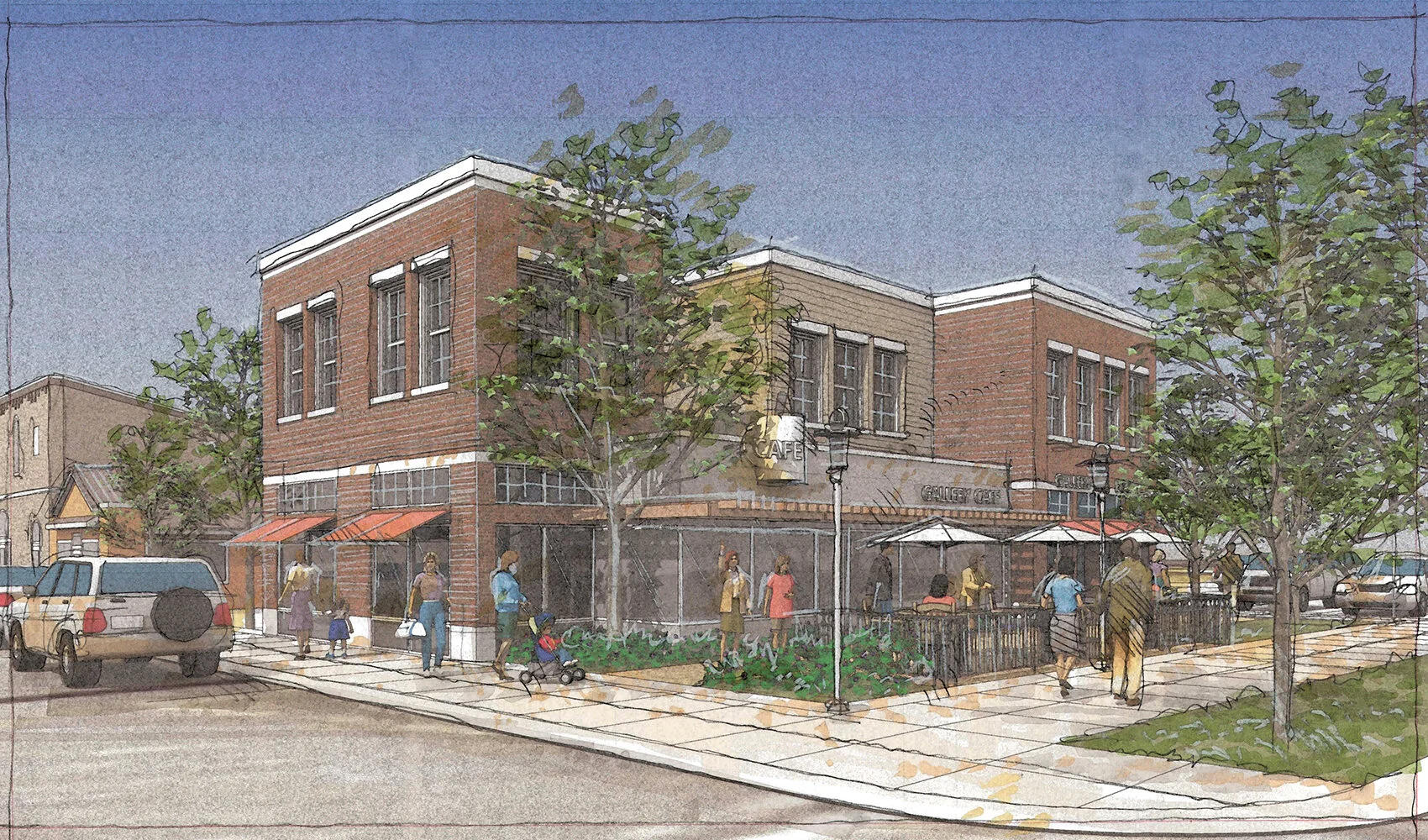
Step 2. Digital Watercolor. My method of turning a SketchUp model into a digital watercolor had numerous intermediate steps (not shown) but involved first rendering the SketchUp model with a photorealistic rendering program with the goal of eventually printing the image on 11”x17” coated paper. Additional linework was lightly added with a very hard pencil and the artwork finally scanned at 300dpi. My final step in the process was to apply a watercolor filter in Photoshop to the image. The resulting visual had a granular character and the appearance of a painted watercolor.
Hybrid Drawing: Print Composite Method
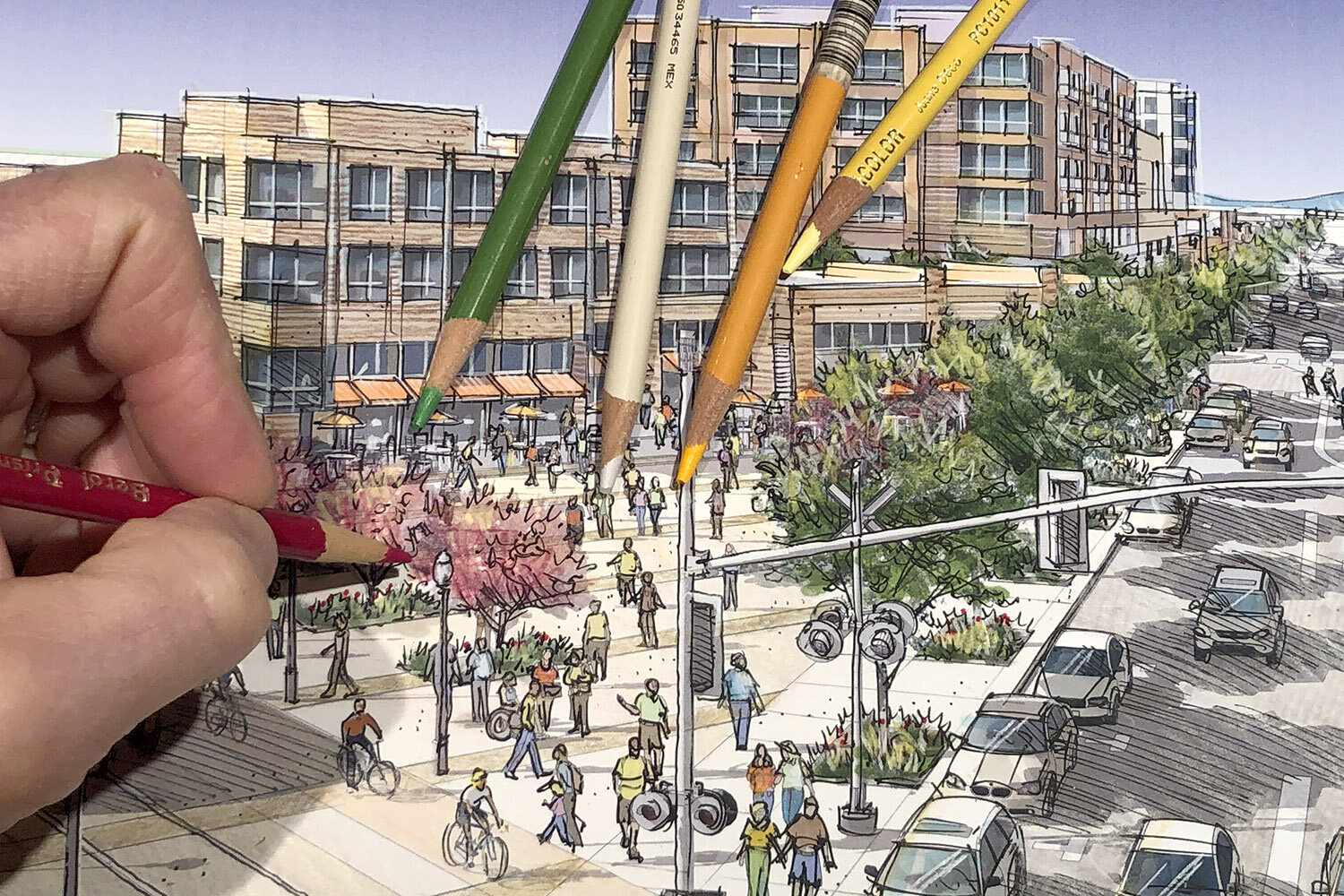
This drawing example is from a recent visualization project in which I was asked to construct 3D SketchUp computer models and create hybrid “hand drawn” renderings for five new transit stations in Los Angeles. The drawing technique I chose is what I call “Print Composite Method” in which the final artwork is a combination of both a computer model image and a hand drawing. Here is a step by step of this effective visual process.
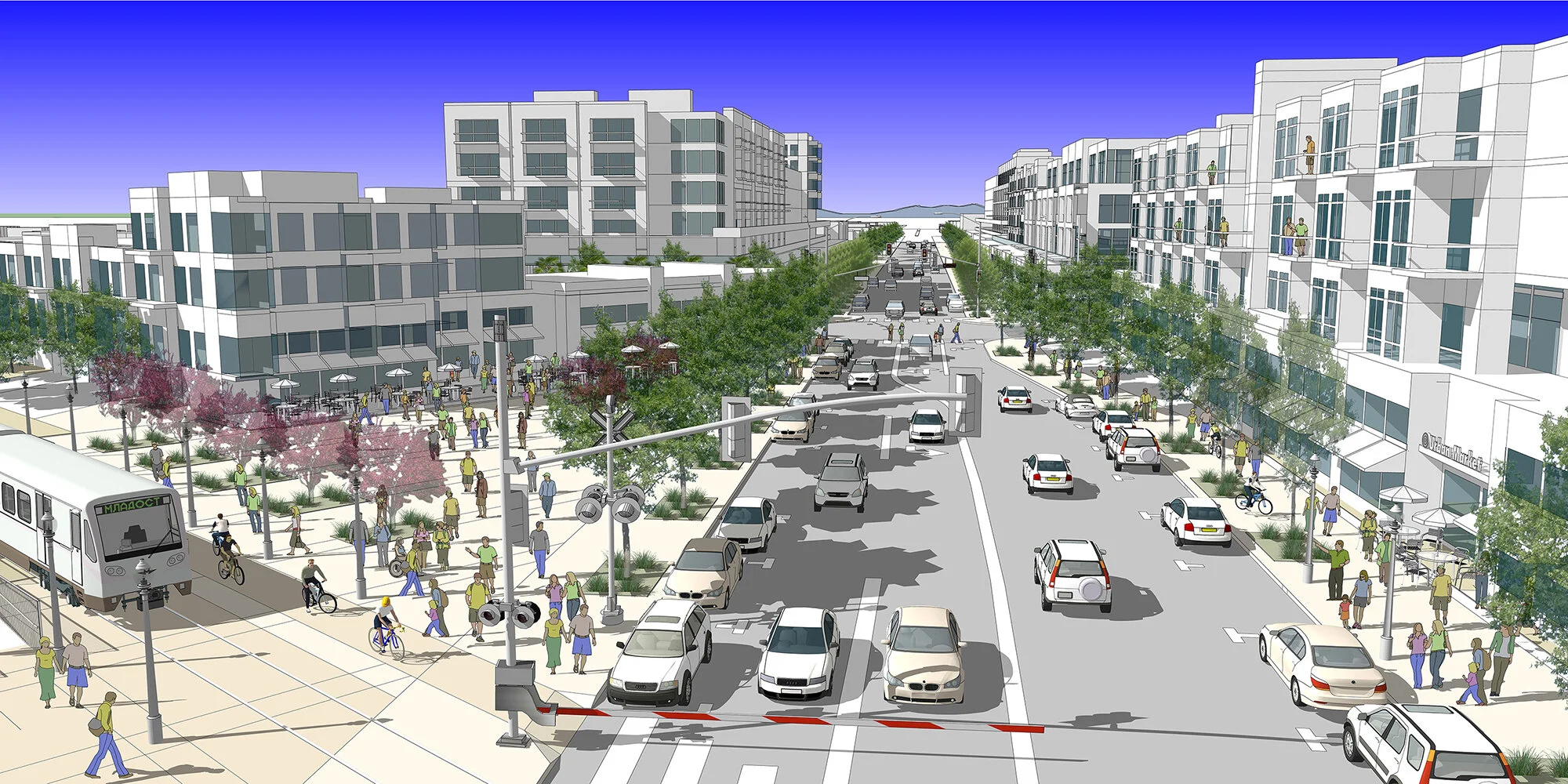
Step 1. Build a SketchUp Model. My client gave me a base SketchUp model of the entire transit neighborhood showing block buildings without any detail. I then constructed the specific street scene adding new architectural building facades, street paving patterns and place making elements such as people, cars and landscaping.
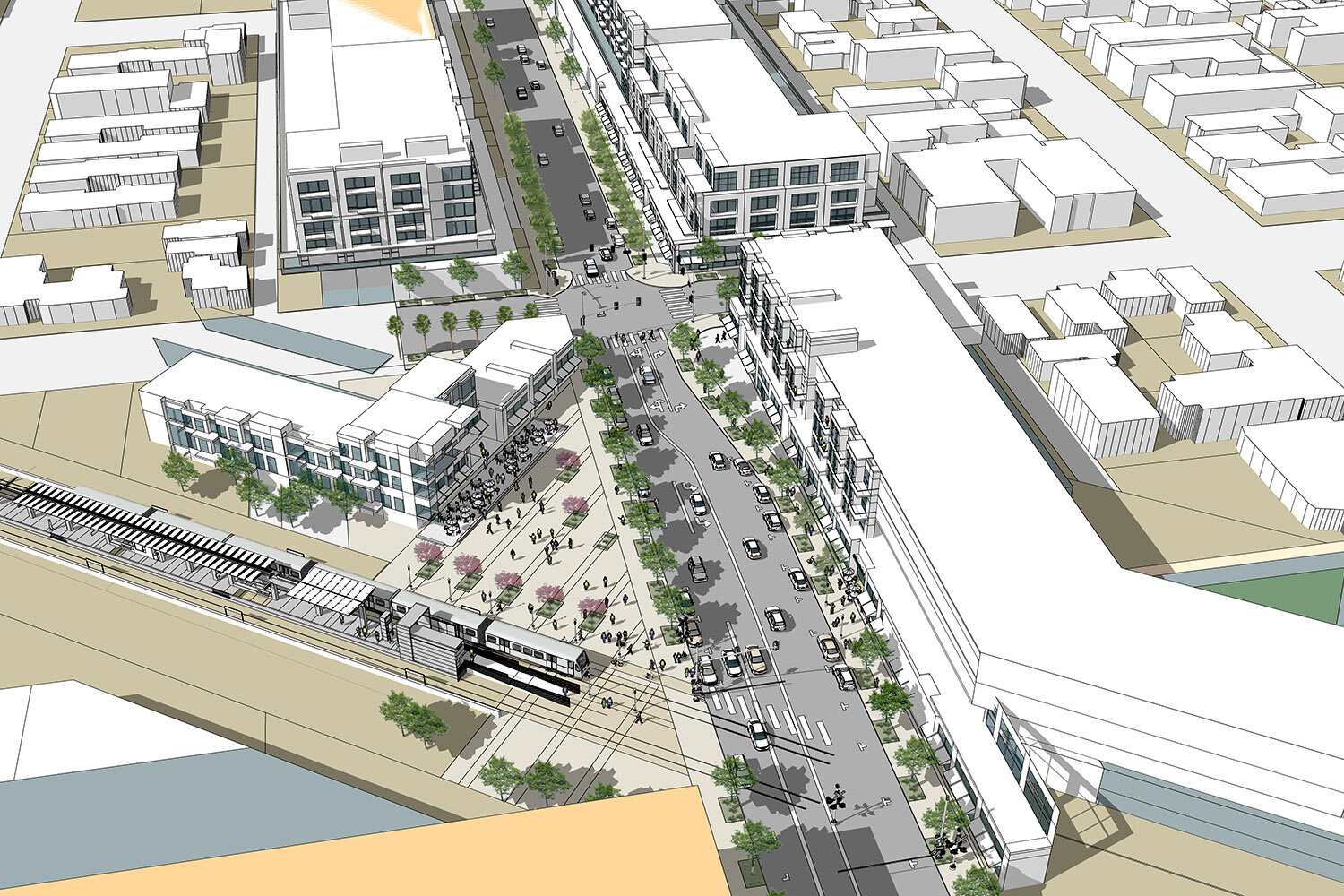
Step 2. Establish the Ideal Perspective View. Working closely with my client, we selected a slightly elevated perspective view that best represented the transit block development. Once the scene was approved, I rearranged model elements to fine tune the composition and finally exported a high resolution jpg of the SketchUp model.
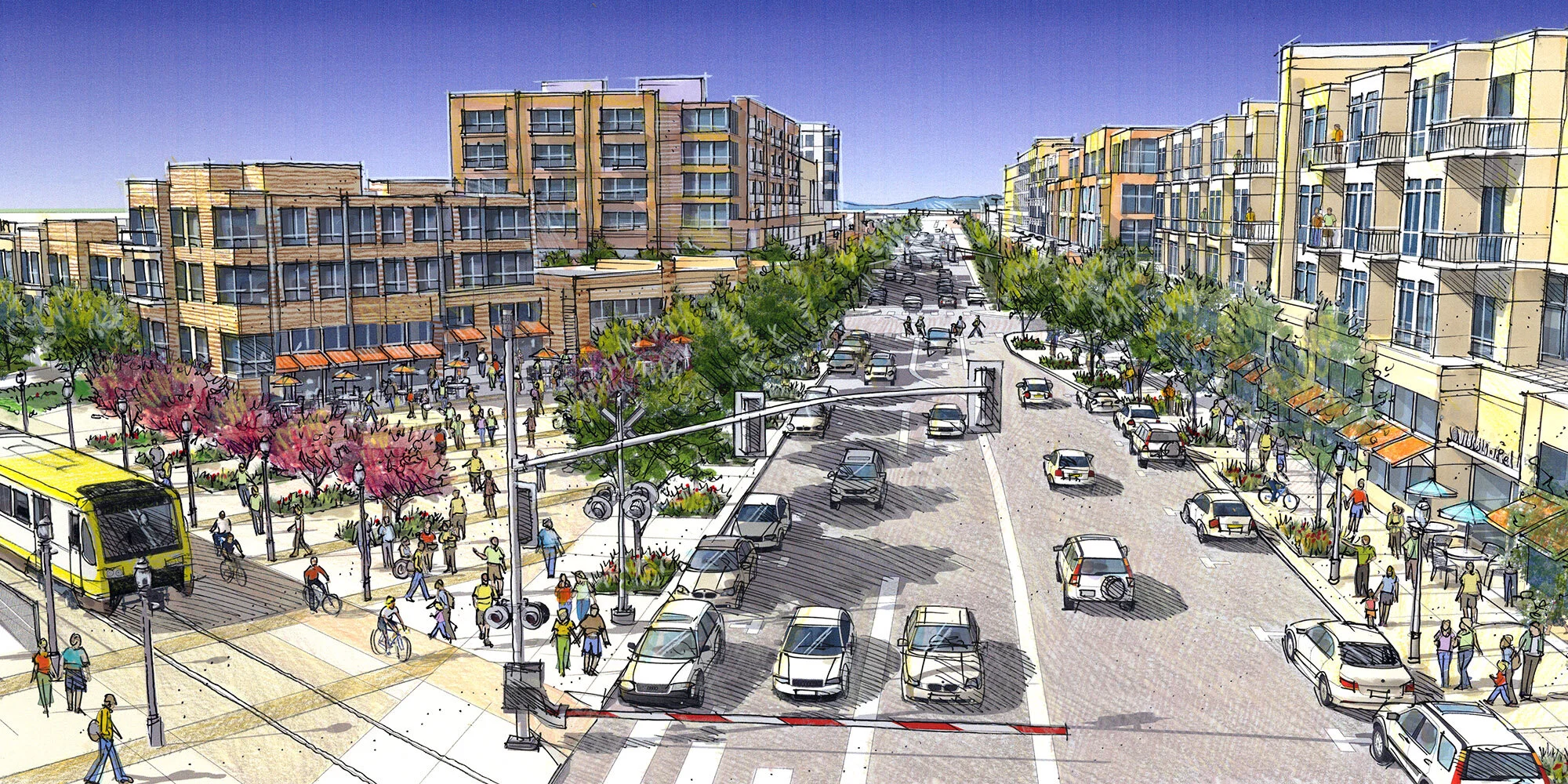
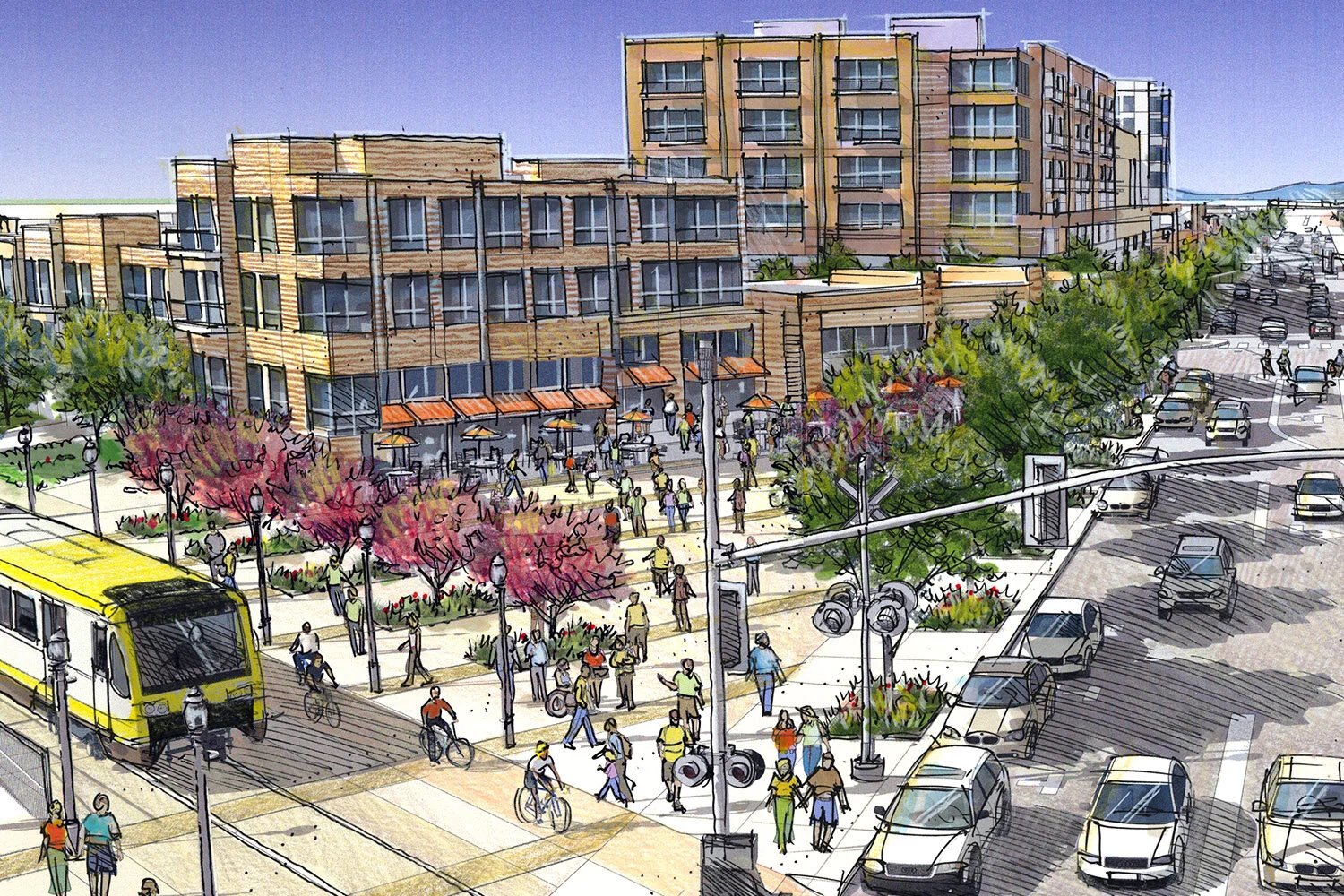
Step 3. Print Composite Drawing. I printed the model view on 12”x18” heavy weight coated bond paper using a large format ink jet printer. Instead of printing the model view with full color intensity, I “lightened” the jpg by 50% in order to eventually add back color with markers and colored pencils. Using a fine point gel pen, I drew directly onto the print tracing the building edges and outlining all of the entourage elements. I applied light colored markers and colored pencils to the artwork to establish the final hand crafted look of the rendering.
Detail of the SketchUp Model. The success of any SketchUp model is the careful attention to architectural detail and component placement. Notice how all of the people and bicyclists are positioned. I made tree components semi-transparent in order to reveal more distant detail. Cars are all white and the model is populated with furniture, plants, and lighting. I also positioned the sun angle to create dramatic shadows on surfaces.
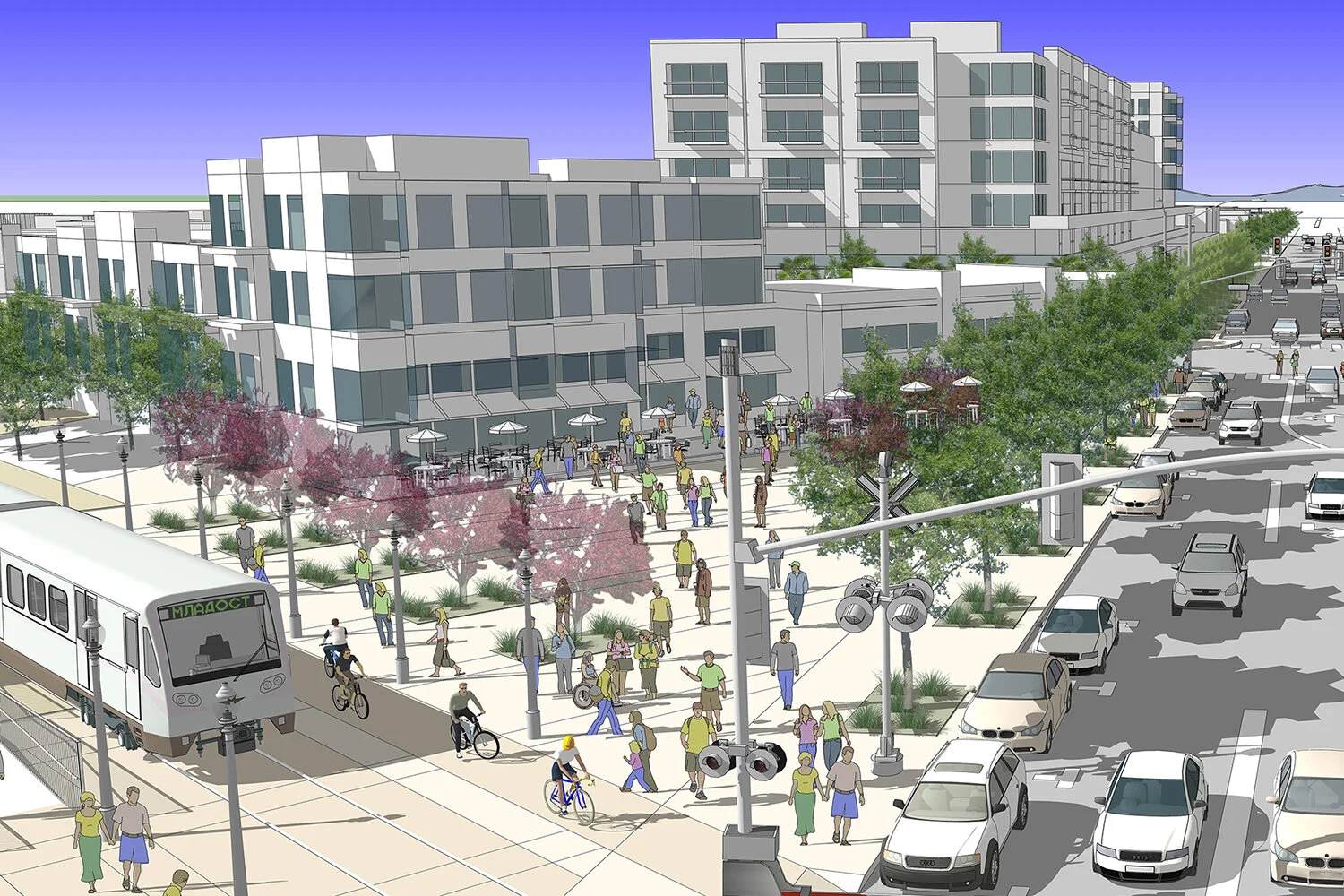
Detail of the Final Artwork. I applied a light colored marker to the buildings and surfaces, followed by colored pencil detail in the architecture and paving. Bright accent colored pencils were effective on clothing, awnings and flower beds. I also traced upper building edges and windows with a white colored pencil. Best of all, I completely illustrated the entire scene using the gel pen — hiding almost all evidence of the computer model and transforming the scene into hand drawn original artwork!
Scan Composite Drawing Method
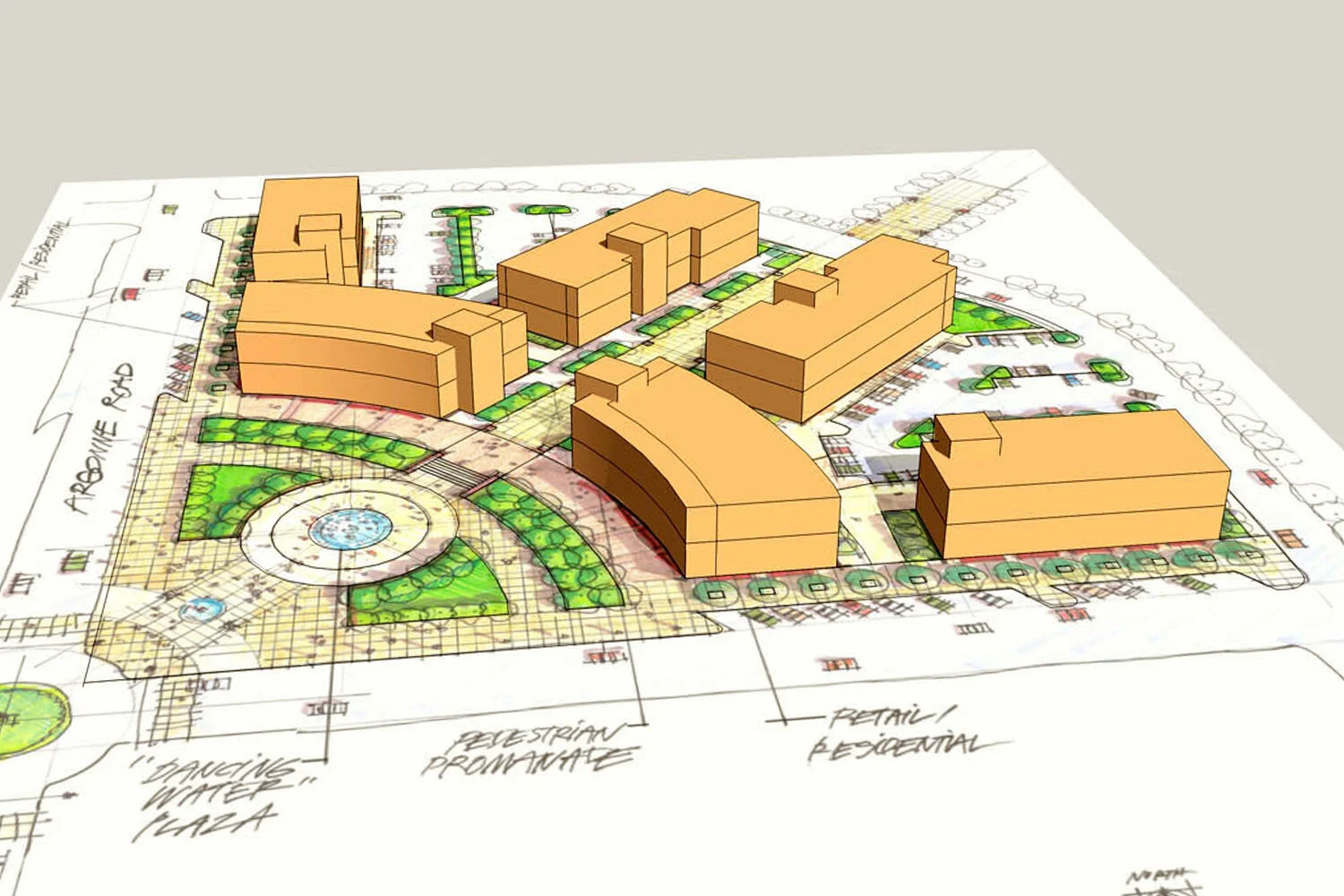
A quick and easy way to draw an aerial perspective from a site plan is to construct a simple SketchUp massing model, establish an aerial view and then trace the perspective from a print of the scene. Here is a “step-by-step” explanation from a drawing I created for a visualization workshop with landscape architects.
Step 1. Import Site Plan into SketchUp. I began with an illustrative site plan for a commercial center and imported the jpg image into a new SketchUp model, making sure that the model scale matched with the site plan.
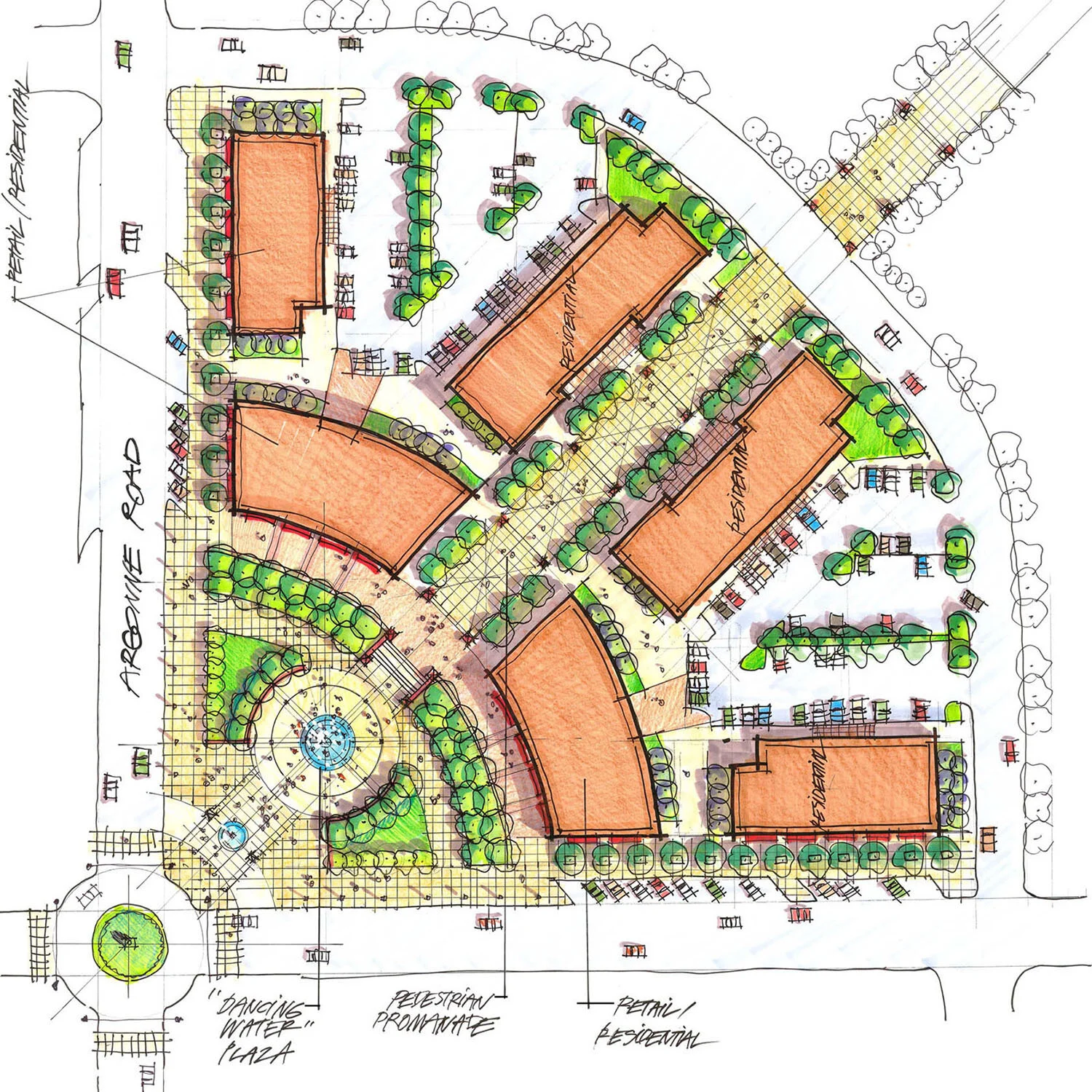
Step 2. Trace Edges and Create Massing. I traced all of the primary curb lines, plaza geometry and building outlines. I then pulled up the building masses to approximately 30 feet high, dividing the faces in half to represent 2-story buildings. The shapes of the buildings were purposely left as simple masses without any detail, windows or articulation. I established a preferred aerial view and saved the scene. I used a camera focal length of 65mm to avoid severe distortion of the 3-point perspective and then exported a jpg of the scene. I printed the image in color on 11”x17” paper.
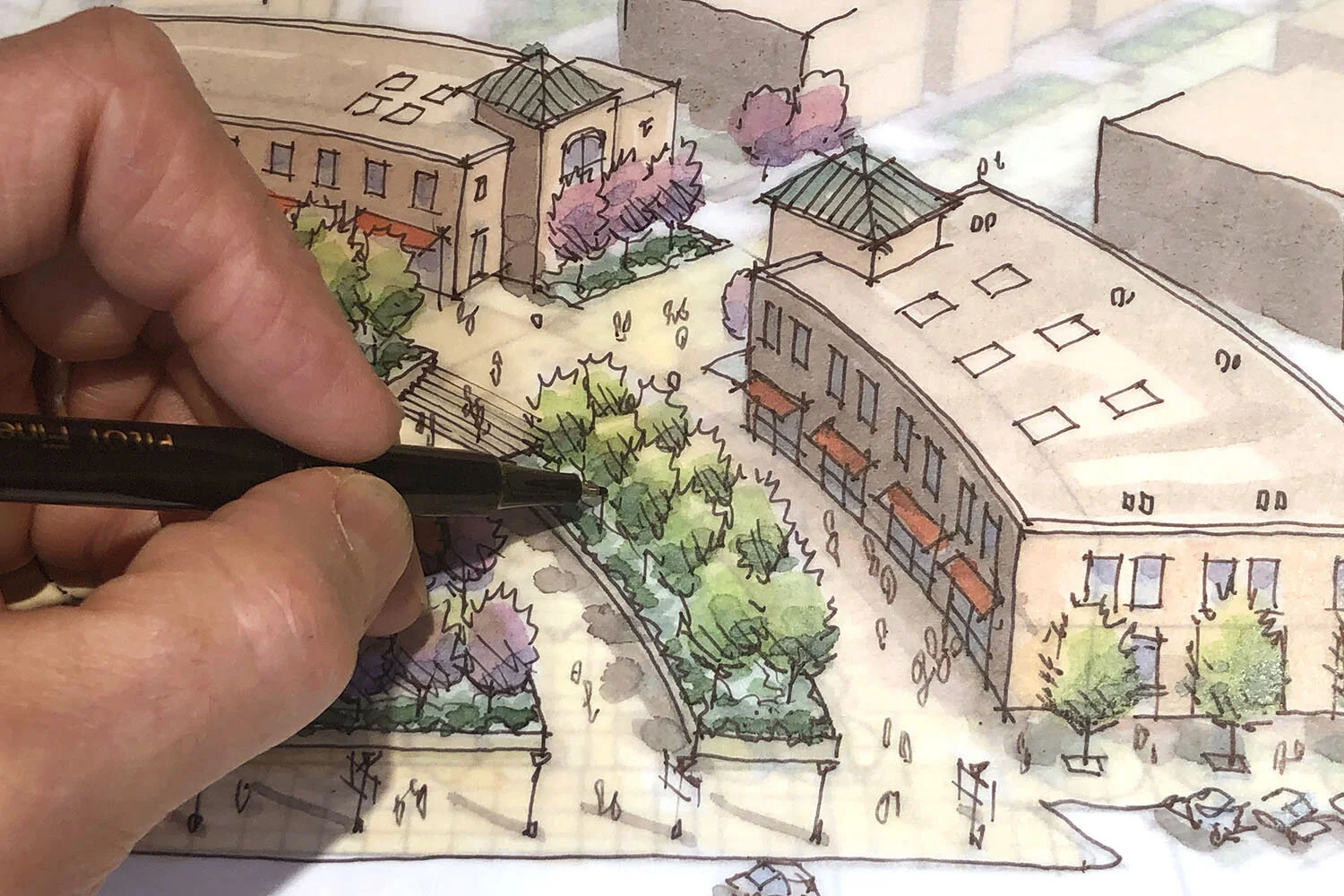
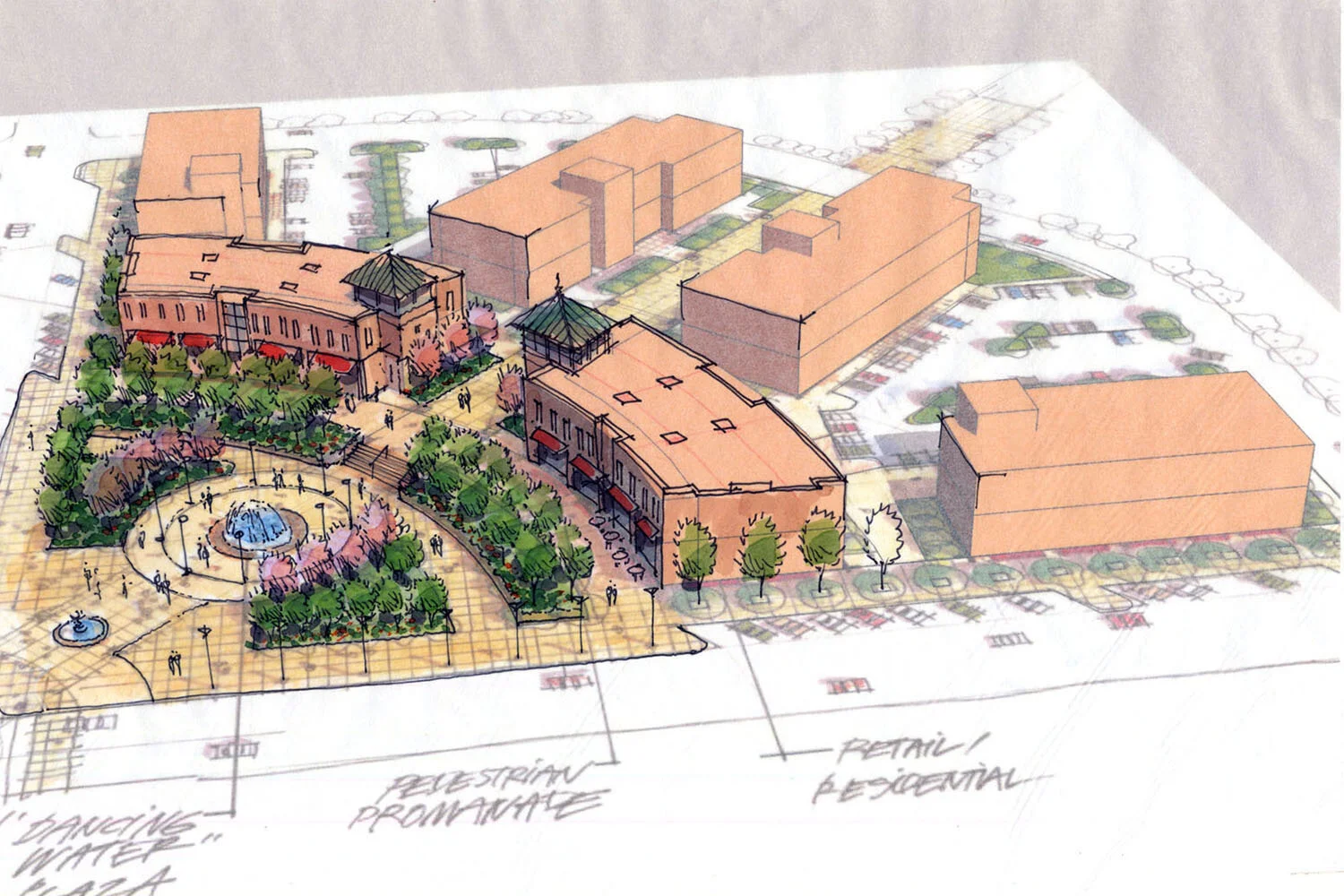
Step 3. Scan Composite Drawing. Drawing with a red pencil on trace, I illustrated the trees, buildings, lighting, water features and stairs in 3-dimensions (red pencil drawing not shown). I then created the final ink line drawing on a second sheet of tracing paper with a fine point Pilot Fineliner pen. Color was added with Chartpak AD markers and my hand drawing was scanned together with the color print beneath it. The resulting composite image highlights the plaza design while “ghosting” in the other site buildings and parking. I call this image a “composite scan” that merges my hand drawing and the SketchUp model view into a very effective hybrid drawing.
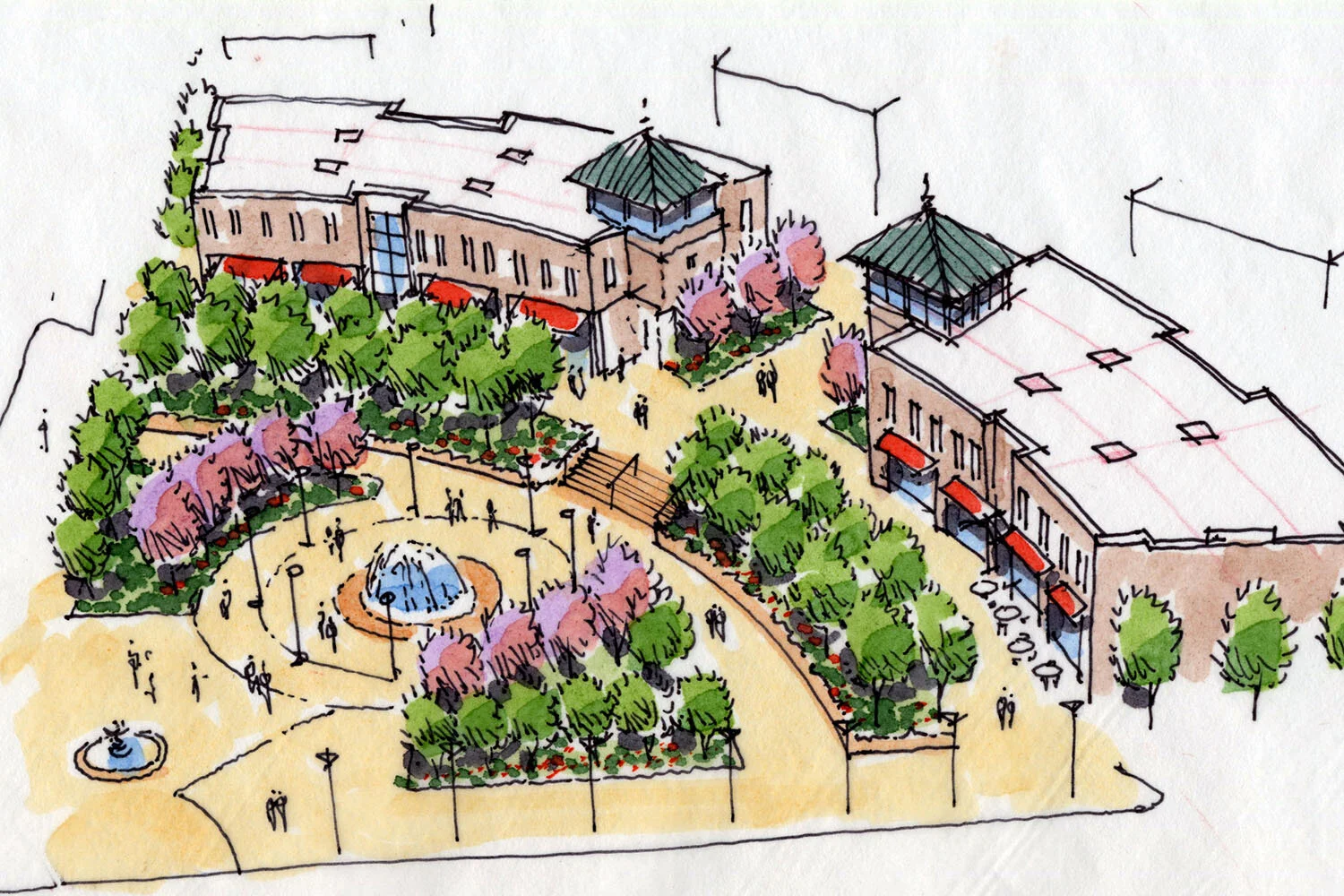
Optional Step. Hand Drawing without the Model. An alternative to compositing the hand drawn aerial perspective with the SketchUp model view is to simply scan the drawing without the background and present it as a 100% hand drawing. Looking at this drawing by itself, I would recommend some additional linework to show the paving patterns in the plaza - 5 minutes of light pencil work would suffice!
Simple Overlay and Trace Method
This basic four step process of creating a quick concept sketch involves the “Overlay and Trace” drawing technique. Starting with a print of my reference image (either from a photograph or a 3D computer model), I develop my creative idea with a red pencil on tracing tracing paper. I then trace over the red pencil mockup with an ink pen and finally add color with markers and colored pencils.
Step 1 Base Photograph - I took this eye level photograph of a small commercial storefront for a client who wanted to imagine what the building might look like with an addition, new exterior landscaping and new use as a small Arts Center.
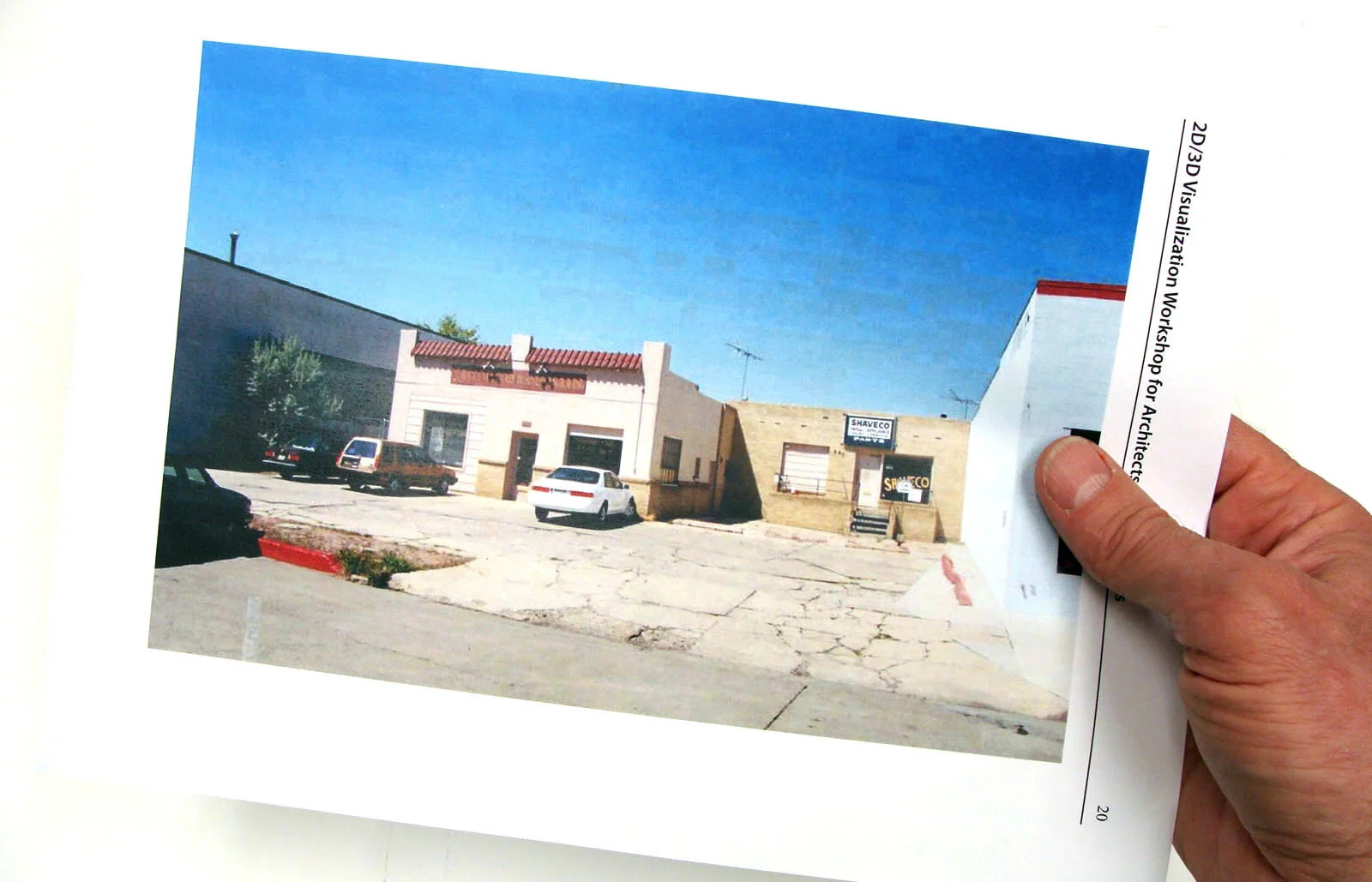
Step 2 Red Pencil Mockup - I printed the photograph on 8 1/2” x 11” paper and taped a sheet of lightweight tracing paper over the print. Using a red Col-Erase pencil, I located the vanishing points from the photo and developed an idea for the 2-story building addition. I also sketched in people to give the drawing activity and added other entourage elements such as landscaping and signage.
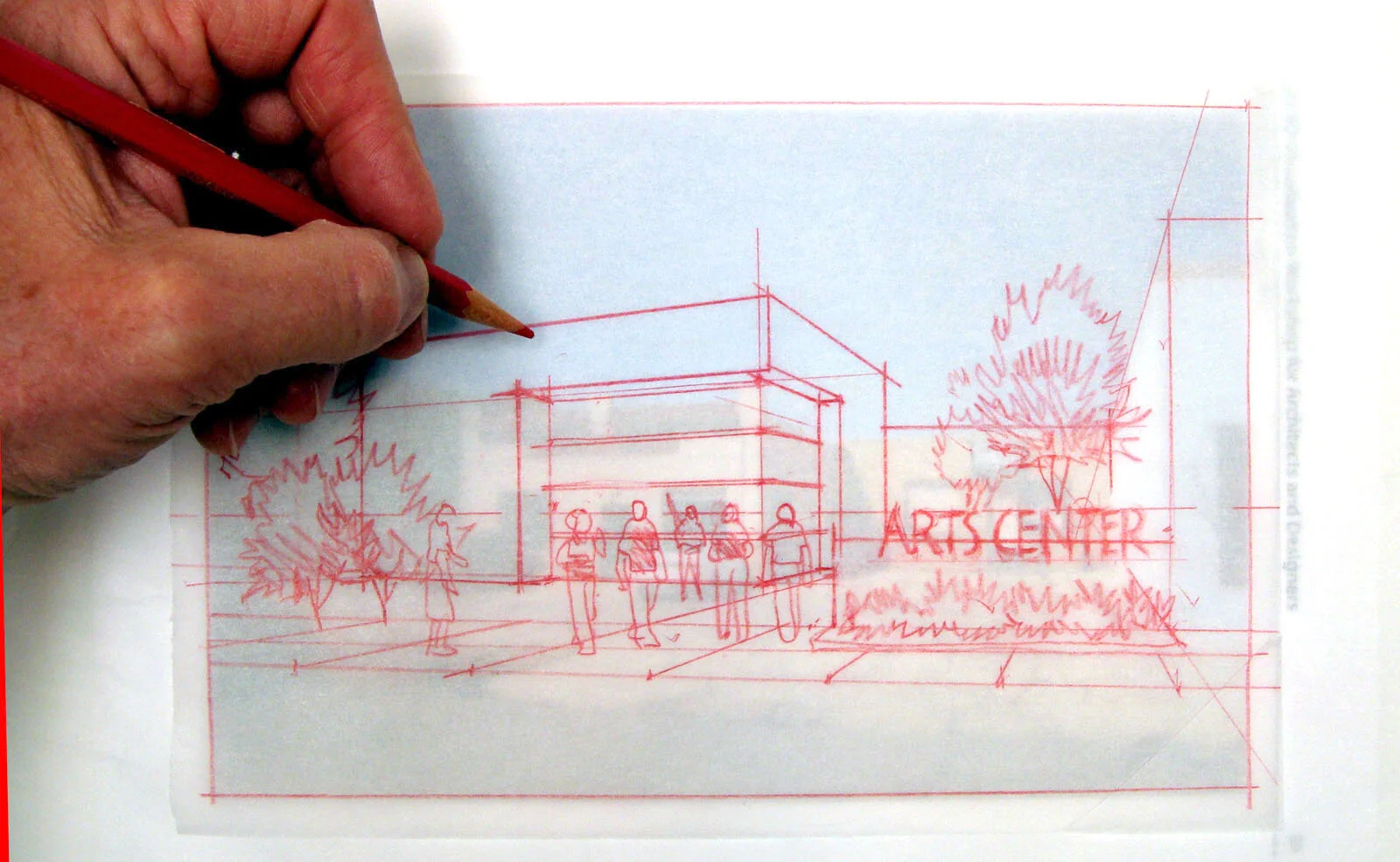
Step 3 Overlay and Trace Drawing - I then taped a second sheet of tracing paper over the redline mockup and proceeded to illustrate the scene using a water based ink pen. The Pilot Fineliner, Pentel Sign Pen or even the Paper Mate Flair are great choices for drawing pens. Everyone always asks why I use a red pencil mockup instead of a standard graphite pencil. With this “layering process” I find it much easier to trace over a red drawing with black ink as I can easily see my linework in the process.
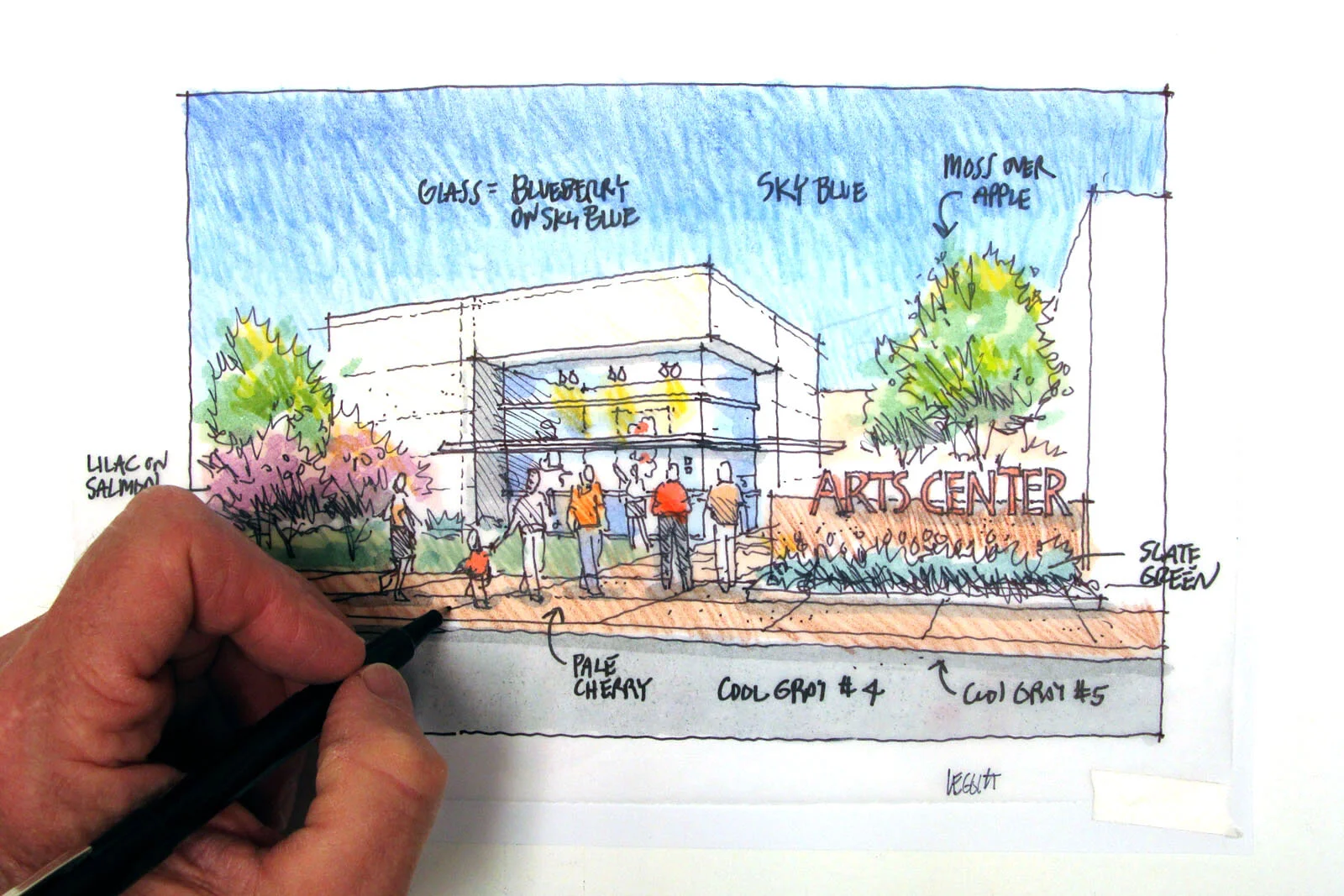
Step 4 Color Marker - I often will scan or take a photo of the line drawing before I color it. If for any reason the drawing is ruined by using the wrong marker color, I can easily reprint the line drawing and start the coloring process again. I use Chartpak AD markers and Prismacolor Pencils for almost all my drawings. After coloring the sky with a Sky Blue marker, I even added some extra shading to the sky with a blue colored pencil. Red and Yellow colored pencils also add highlights to the image to emphasize specific elements of the drawing. I scan the completed artwork at 300dpi and save it as a jpeg. The original photo print, redline mockup and final artwork is then filed away in a project folder.
Composite Drawing from SketchUp: Pocket Park
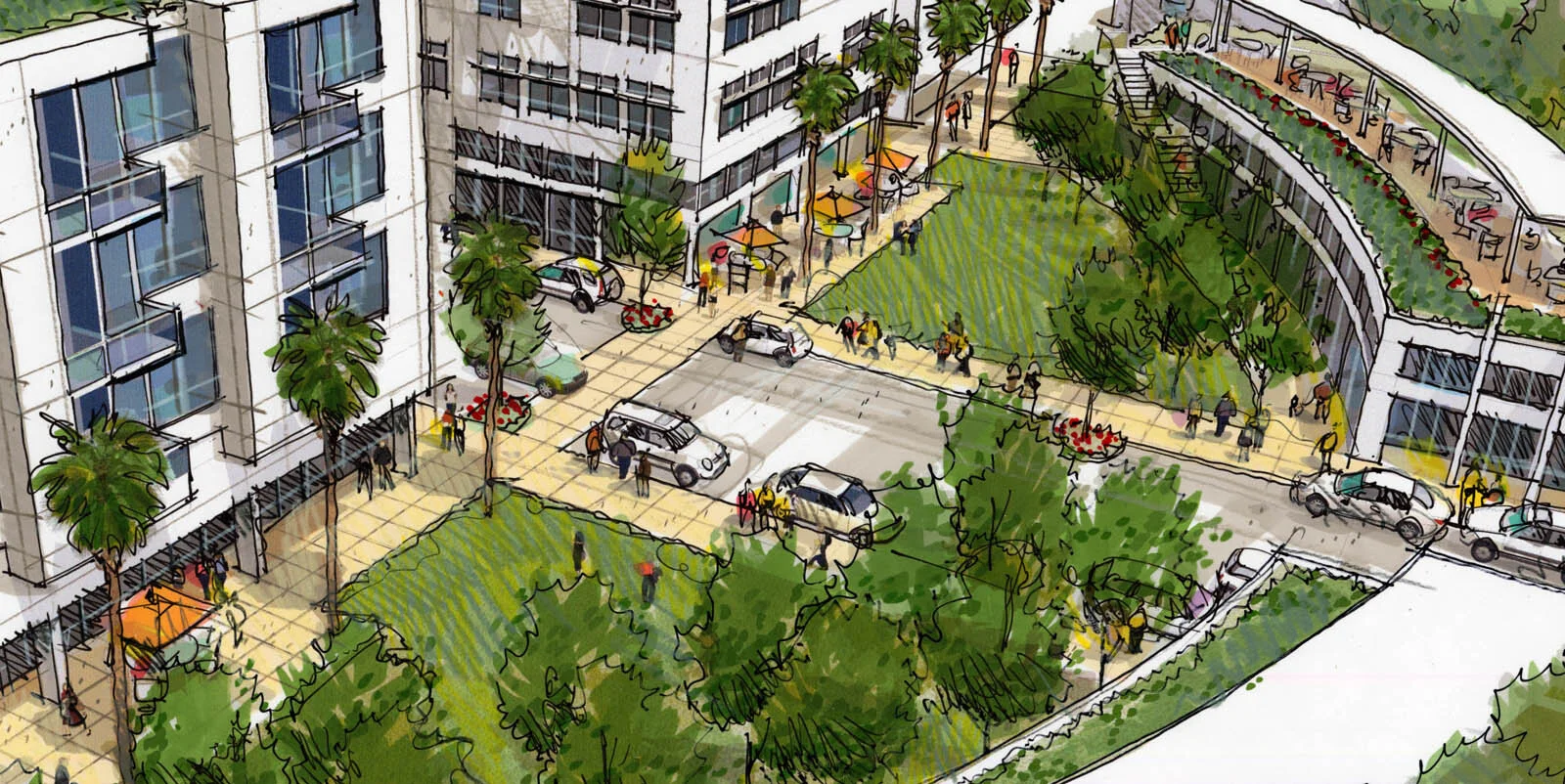
This visualization project was very exciting to produce as it involved both 3D digital imaging and 2D traditional hand drawing processes together, i.e. construction of a detailed SketchUp model and hand drawings created from two model views. Important to note about this process is 1) all work can be accomplished in your studio without any outside help, and 2) once the model is complete, the hand drawing portion takes very little time! If you are working out of your studio, I recommend the following equipment and software that will enable you to produce practically all of your visualization projects: Epson Workforce 1100 13”x19” printer, 11”x17” flat bed scanner, set of Chartpak AD markers, Prismacolor pencils, Adobe Photoshop and Trimble SketchUp.
Working closely with the talented California urban planner Farooq Ameen, the view highlighted below in several “step-by-step” phases was art directed to feature a pocket park located within a proposed mixed-use development. Farooq and I worked closely together on architectural facade concepts, model view selection and client reviews.
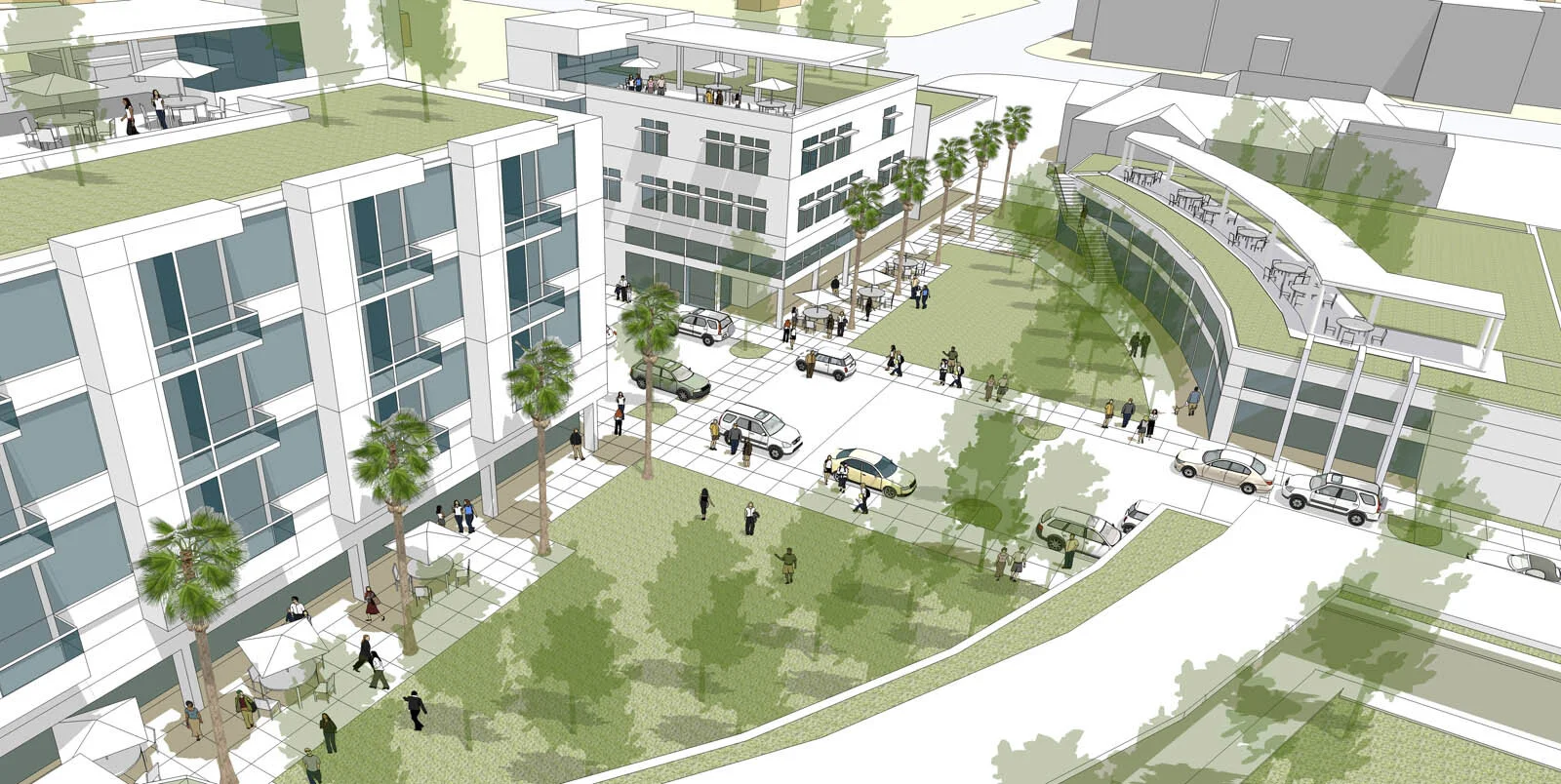
Step One: Original Model View. I selected a 50mm focal length to capture more of the scene without the distortion you might experience with a more wide-angle lens. I made the trees very transparent and strategically placed cars, furniture and people in the composition.
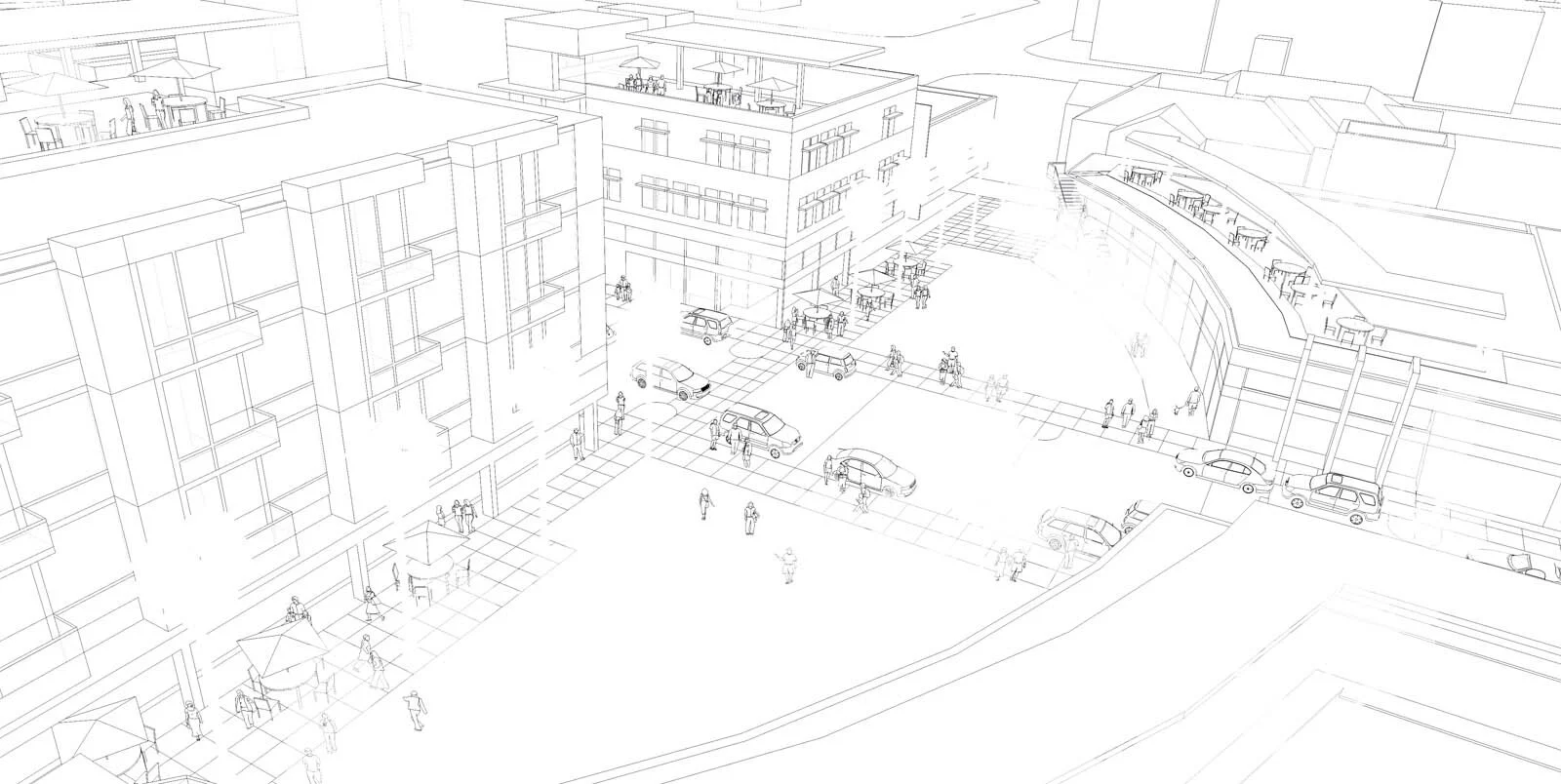
Step Two: Exported Linework. I exported a high resolution jpeg (4000 pixels) view of scene with only the edges. In Photoshop, I lighted the linework to about half of its original density. Why? Lighter lines = less computer dominant image.
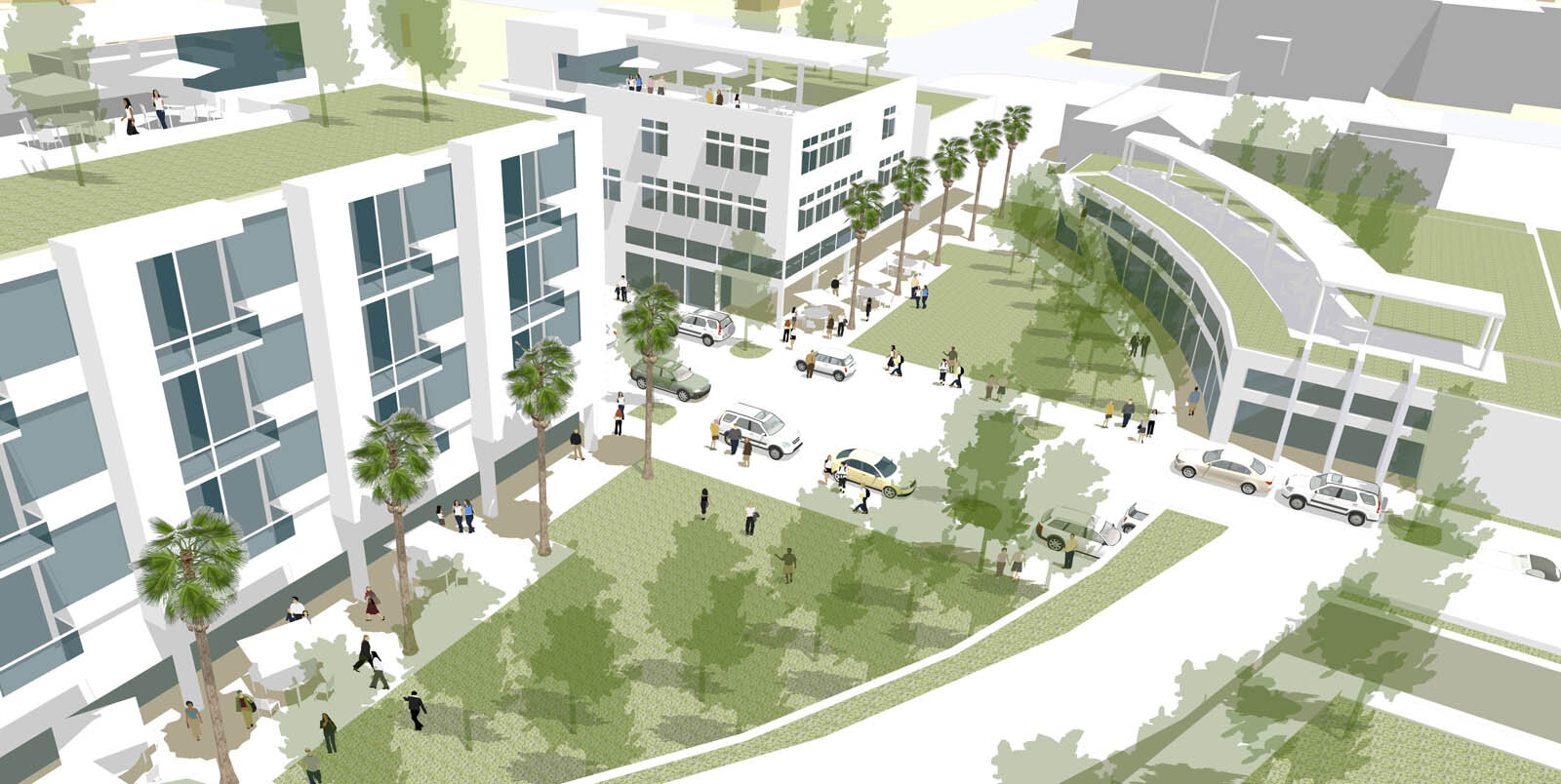
Step Three: Export Without Lines. I exported a second high resolution jpeg of the same scene with the lines turned off.
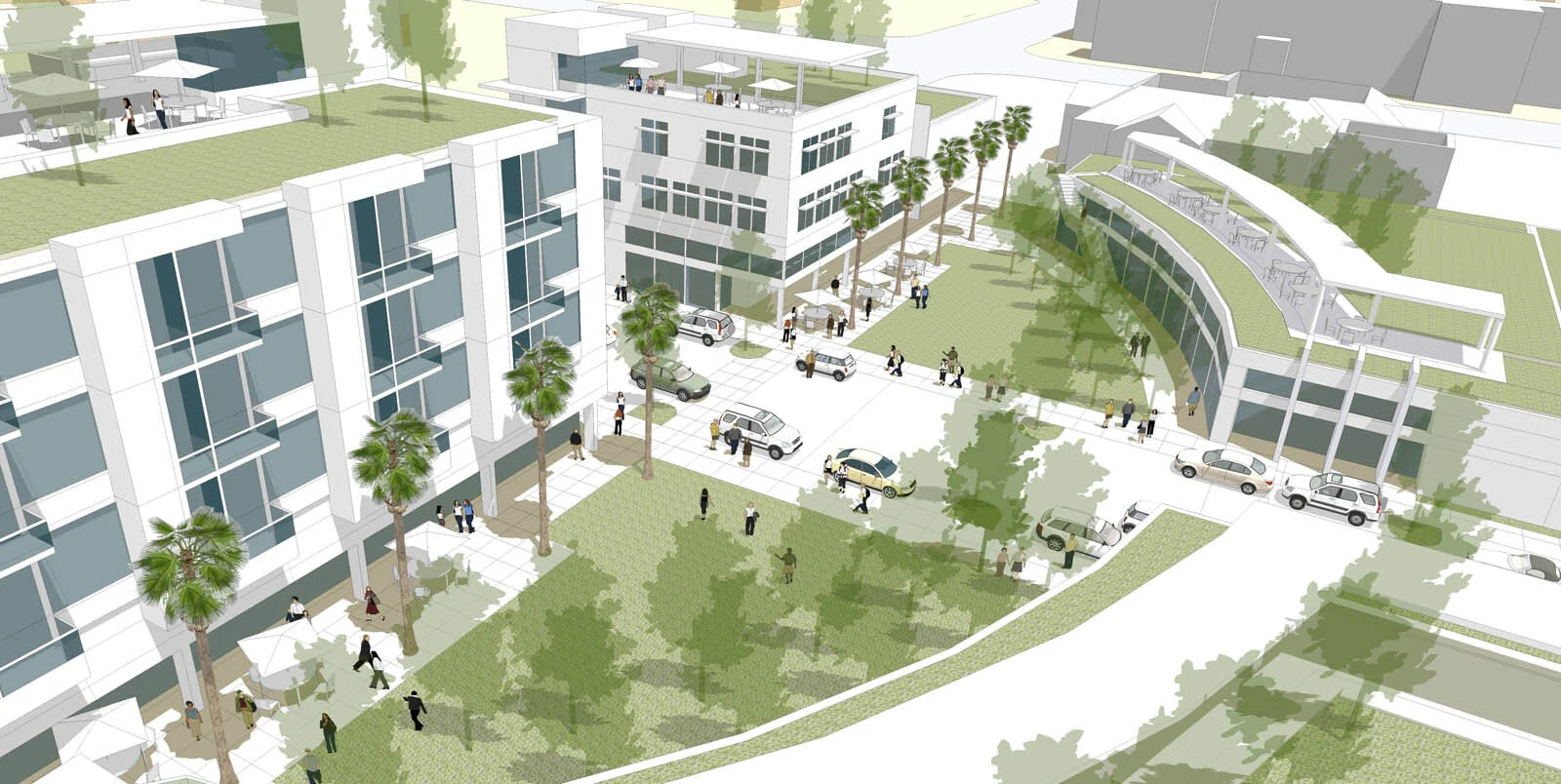
Step Four: Image Composite. I merged the two images together in Photoshop and then lightened the composite image once more in order to drop back the color intensity. It is important to lighten the image so that you can add back color with markers and colored pencils! I then sized and printed the image 81/2x17” on to coated bond paper.
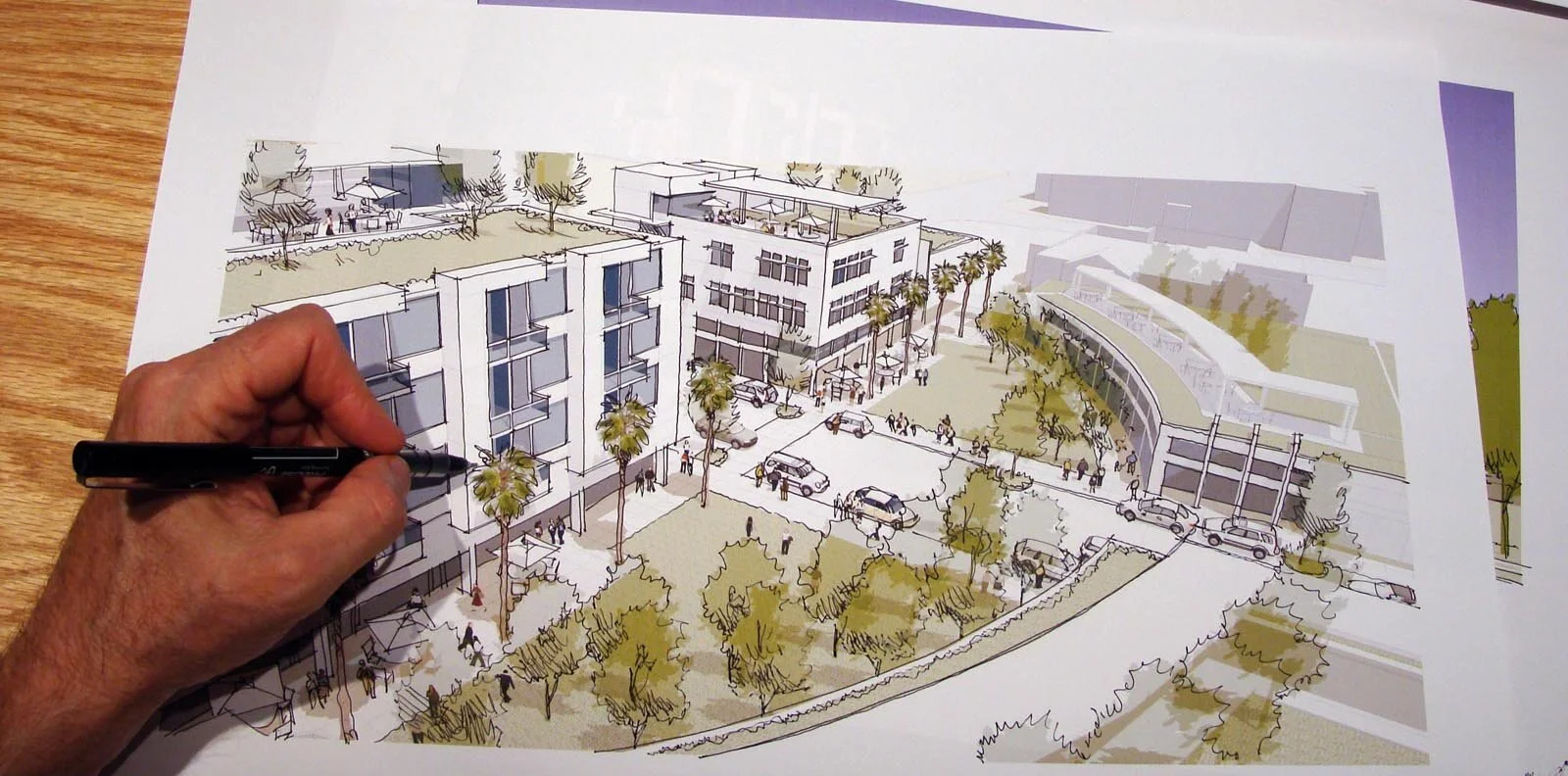
Step Five: Ink Linework. Using a Pilot Precise Rolling Ball pen I illustrated the trees, outlined the building edges and gave the overall print a complete hand drawn appearance. The character of hand drawn lines completely disguises the fact that the image began as a 3D computer generated view!
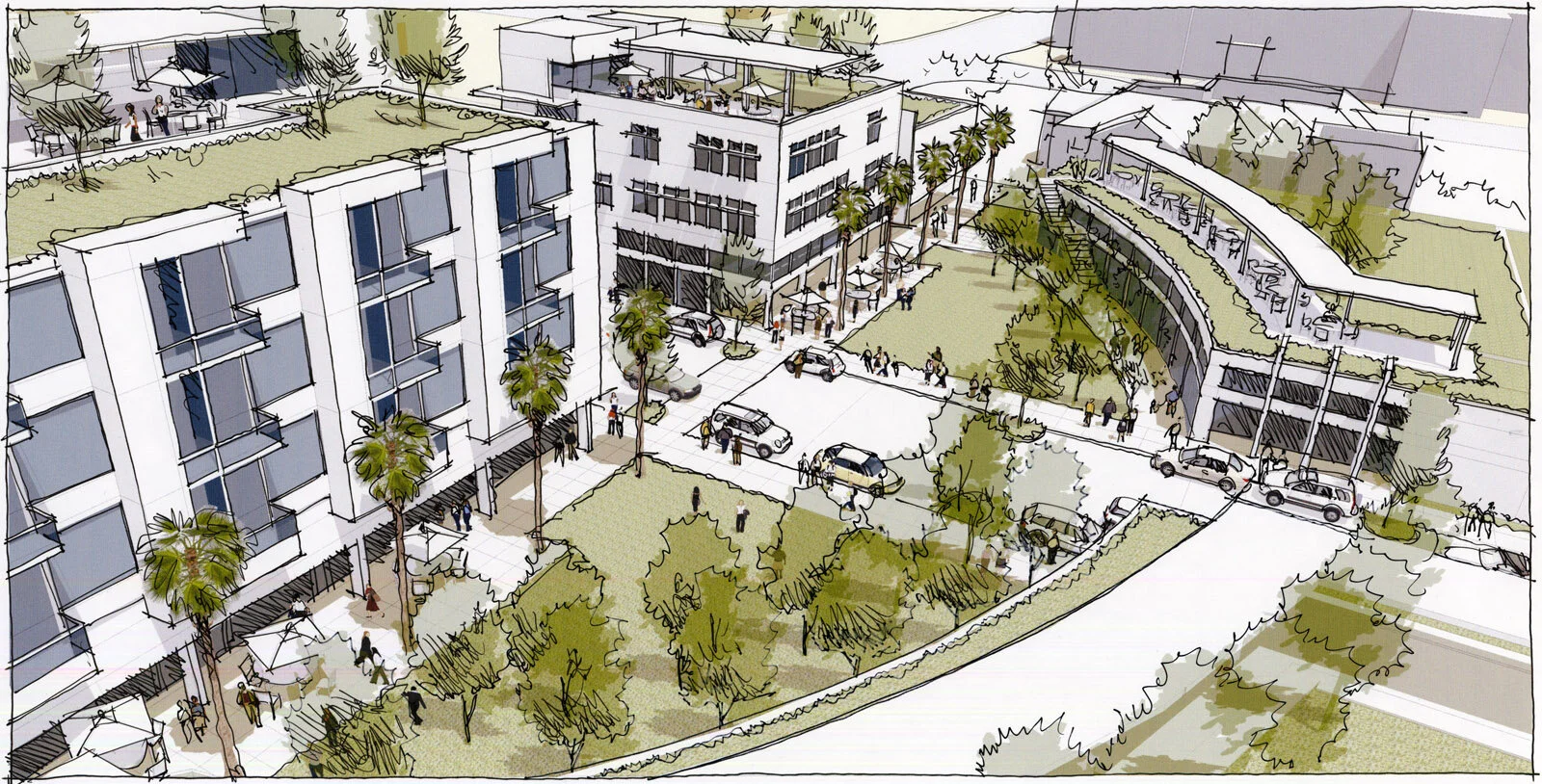
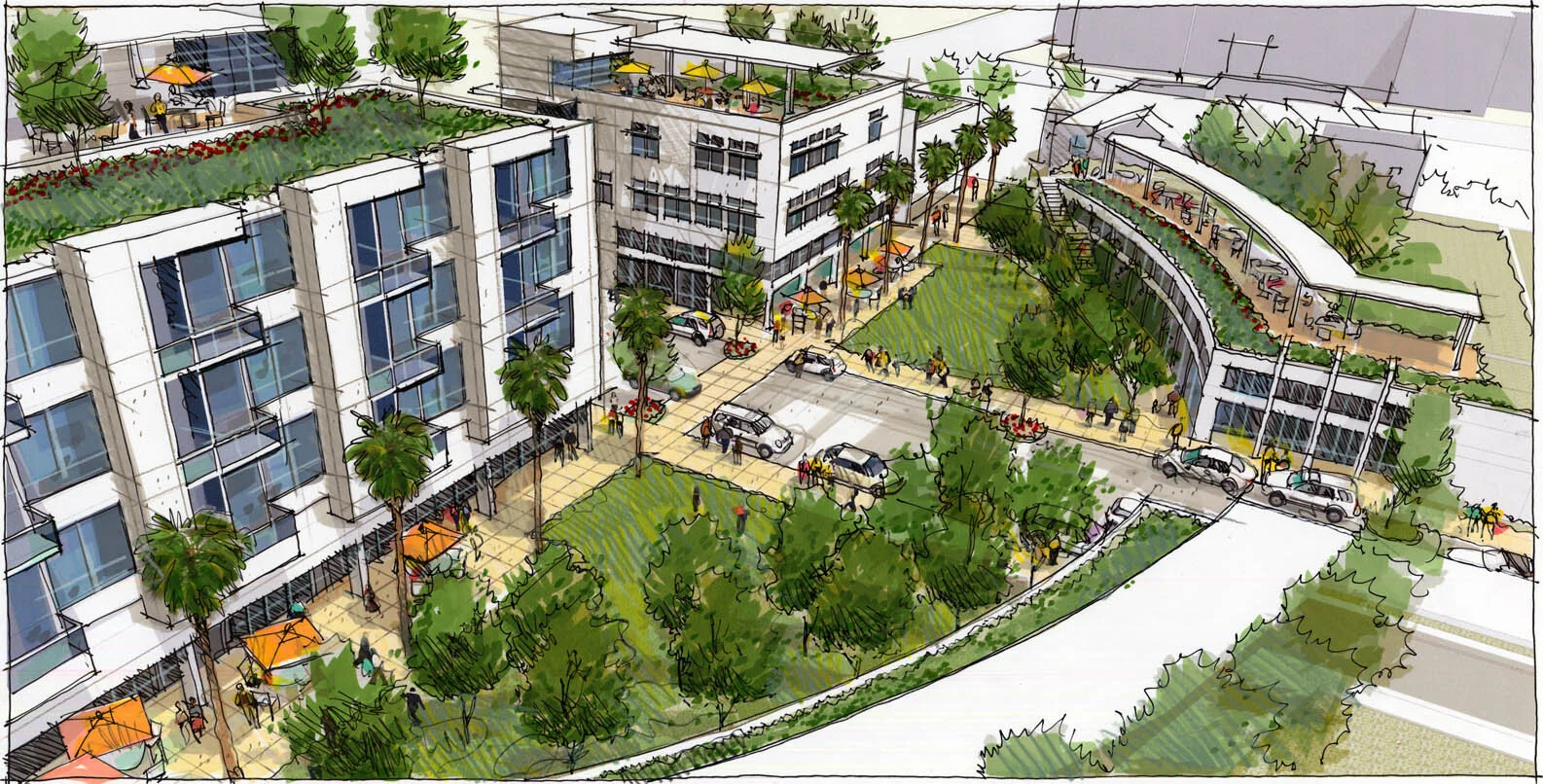
Step Six: Final Color. The last and most exciting step was adding a wash with different Chartpak AD markers and Prismacolor pencils to create texture and character. Outer portions of the image were left untouched while the central park and dining patios received more color and delineation. I scanned the completed image at 300dpi and sent a jpeg to Farooq for inclusion in a planning document.